CTR1/CTR2: Council Tax requirement return - data upload guidance
Updated 13 February 2026
Applies to England

© Crown copyright 2026
This publication is licensed under the terms of the Open Government Licence v3.0 except where otherwise stated. To view this licence, visit or write to the Information Policy Team, The National Archives, Kew, London TW9 4DU, or email: psi@nationalarchives.gov.uk.
Where we have identified any third party copyright information you will need to obtain permission from the copyright holders concerned.
This publication is available at /government/publications/council-tax-requirement-return/ctr-council-tax-requirement-return-bulk-upload-guidance
Introduction
ÌýApplication of the guidance
This guidance is applicable for:
- Billing Authorities completing the CTR1 form and parish submissions
- Precepting authorities completing the CTR2 form
If you are responsible for the CTR3 (GLA) or CTR4 (Greater Manchester CA, South Yorkshire MCA, West Yorkshire CA or ÌýYork and North Yorkshire CA) form, then data needs to be directly entered into the DELTA system.
ÌýCompleting the forms in Excel or DELTA
We have provided equivalent CTR1Ìýand CTR2Ìýforms in Excel to authorities, soÌýauthoritiesÌýcan completeÌýthe form in Excel and upload theÌýworkbookÌýtoÌýDELTAÌýif they wish.ÌýWe would recommend that the upload facility is used where billing authorities have multipleÌýparishesÌýand local preceptingÌýauthorities.ÌýCalculationsÌýand validationÌýchecksÌýbased on these figuresÌýwill beÌýperformedÌýinÌýthe templateÌýso that they can be checkedÌýbefore data is uploaded intoÌýDELTA. If there are any outstanding validation checks, these forms will beÌýsaved rather thanÌýsubmitted.
Manual entry directly intoÌýDELTAÌýis still available, and manual entry after the data has been uploadedÌýcan take place (for example, to change the data uploaded). However,Ìýany upload following manual entry will overwrite these changes.
Please read and follow the guidance carefully.
ÌýPreparing your workbook for upload
ÌýCTR1 form
ForÌýthe CTR1 form,Ìýthe workbookÌýmust be savedÌýas anÌý.xlsxÌýfile inÌýorderÌýto upload the data toÌýDELTA. The sameÌýworkbookÌýcan be used to upload the data for the CTR1 submission and for the CTR1 Parish data submission.
ForÌý2026-27,Ìýto ensure that the data uploads successfully,Ìýthe first tabÌýofÌýthe workbook must correspond to the data you are uploading. This means:
- If you are uploading the CTR1 data,ÌýtheÌýUpload_Data_CTR1_BillingÌýtabÌýmust beÌýthe first tab in the workbook.Ìý
- If you are uploading theÌýParishÌýdata,ÌýtheÌýUpload_Data_CTR1_LocalÌýtabÌýmust beÌýthe first tab in the workbook.
You can reorder the tabsÌýby clickingÌýand dragging them. Please do notÌýdeleteÌýor amendÌýeitherÌýtheÌýUpload_Data_CTR1_BillingÌýtab or theÌýUpload_Data_CTR1_LocalÌý³Ù²¹²ú.Ìý
ÌýCTR2 form
ForÌýthe CTR2 form, theÌýworkbook will also need to be saved as anÌý.xlsx file for a successful data upload.
ÌýDealing with issues
It is important to note that when uploading data toÌýDELTA, some authorities may experience issues at both the upload and validation stages of the process. When experiencing an error here, theÌýDELTAÌýteam recommends that authorities retry the file upload. If there are issues at the validation stage i.e., the system suggesting that rows are invalid, then we recommended continuing to the import stage of the upload. Once authorities have uploaded their workbook,ÌývalidatedÌýthe data, and started the import, the data will be processed in theÌýDELTAÌýsystem. It is worth noting that once the Import has started, this will continue in the background even if you get logged out or navigate away from the page.
This guide is for bulk upload viaÌýthe CTRÌýExcelÌýWorkbookÌýand not for XML / API uploads.ÌýIf you want to enter data directly intoÌýDELTA, see .
Ìý±õ²Ô²õ³Ù°ù³Ü³¦³Ù¾±´Ç²Ô²õ
1. Find and complete the CTR Excel Workbook, and save as anÌý.xlsx file, with the correct tab as the first tab in the workbook (as detailed above).
2. Sign in to . Once you have signed in, Ìýyou will be taken to the Welcome Page.
3. Under ‘Open collections’, find the CTR collection and click ‘View collection’. You will then see a page for the collection.
4. At the bottom of the page,Ìýyou will see a section for returns. Select ‘Bulk upload’.ÌýNext to ‘Bulk upload’,Ìýthere will be a button to ‘Download bulk upload template’ - please do not use this template to upload your dataÌýas it will not work. Please use the CTR Excel workbook provided.
5. Select ‘Upload data’ in the dropdown menu. Choose ‘Select file’ and select the CTR Excel Workbook from your computer or drag and drop the file in the box.
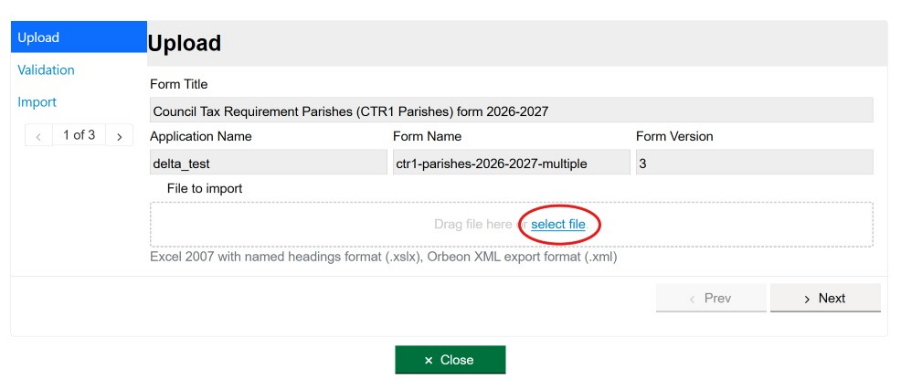
6. OnceÌýyou haveÌýselected the file,ÌýaÌýgreen box at the bottom will say ‘Upload complete’.ÌýThe file is now uploaded, but it still needs to be checked for errors andÌýimported into the system.ÌýSelect ‘Next’.ÌýThis will take you to the validation page which will tell you if your data is valid or invalid.ÌýIn some instances, this first upload can fail. We recommend retrying in the first instance.
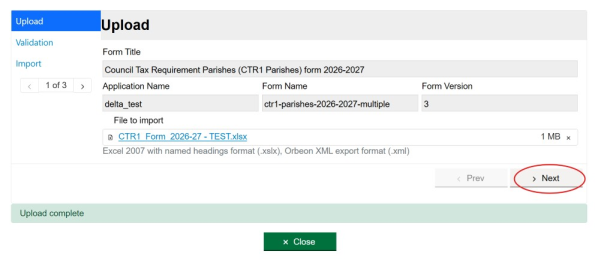
7. This will then start the DELTA validation.ÌýBe aware this may take a minute or twoÌýdepending on how much data is being loaded. You will need toÌýwaitÌýuntil aÌýgreenÌýtextÌýbox appears.
-
If it is valid, it meansÌýDELTAÌýcannot find errors on the data. It will be imported, and its status will be ‘Submitted’.ÌýYou can still view or edit the form in the dataÌýstore. Once your data has been successfullyÌýsubmitted, you will receive a confirmation email. You can follow the ‘view completed results’ link to go to the data store.
-
If it saysÌý‘xÌýoutÌýofÌýxÌýdocumentÌýisÌýinvalid’Ìýthis meansÌýthere are data problems,ÌýorÌýfurther review or explanatory comments areÌýrequiredÌýbefore it can beÌýsubmitted.ÌýPlease continue with the upload.ÌýIt will show as ‘Saved’ rather thanÌýsubmitted. You will then need to edit the formÌýon DELTAÌýlater to resolve the issues andÌýsubmit.ÌýIn some cases, the system can suggest that all documents are invalid on upload. We recommend that authorities continue with the import stage where this is the case.
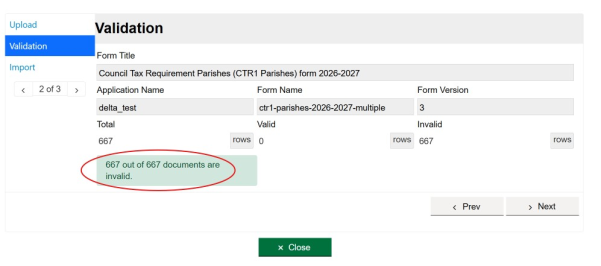
8. Click ‘Next’ to proceed to import the record.
- IfÌýthere are existing records previously uploaded orÌýsubmittedÌýfor this collection for your organisation, you will be asked if you want to ‘Keep’ or ‘Delete’ before you ‘Start Import’.ÌýPleaseÌýselect the ‘Delete’ option, as there can only be one record forÌýthe CTR1/CTR2Ìýcollection.
- The imported data will overwrite any existing data.ÌýThis includes replacing previously reported values with blanks if these cells have been left blank in the re-uploaded template and overwriting changes made directly intoÌýDELTA.
- If presented with an option to ‘Import’ or ‘Skip’, select the ‘Import’ option, not the ‘Skip’ option.
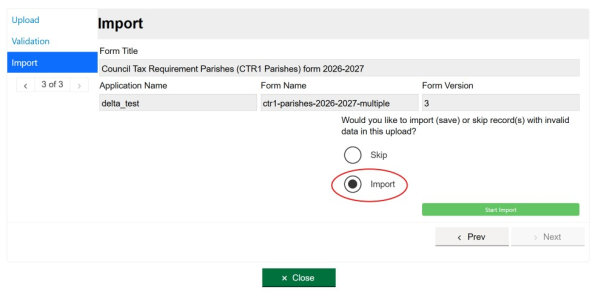
9. Click on ‘Start import’. Once the Import has started, this will continue in the background even if you get logged out or navigate away from the page.
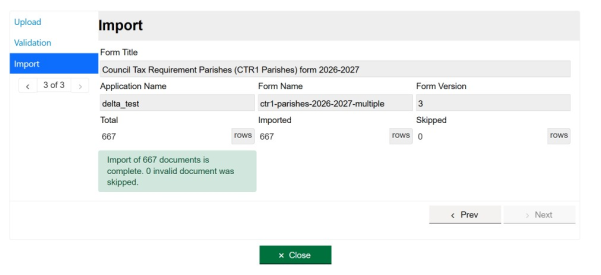
10. A message in a green box will appear to say theÌýimport of the document is complete.ÌýClickingÌýon ‘Close’Ìýwill take you to the data store.
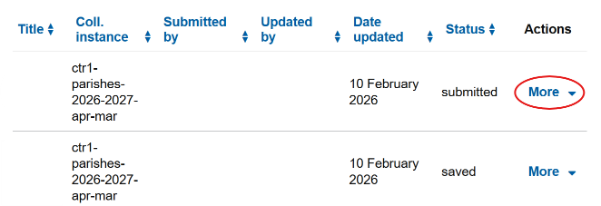
11. Please check your data in theÌýdata store.ÌýYou can view or edit individual records by selecting ‘More’ next to each record. Use the Status filter to show only ‘Saved’ records (these are records that have not yet beenÌýsubmitted). If you edit a saved record, you will be able to view the error and thenÌýsubmitÌýit.Ìý
To view all records, youÌýmay use theÌý‘DownloadÌýCSV’ÌýoptionÌýat the top of the data store page. Please ensureÌýthatÌýall records areÌýsubmitted.
Note - for CTR1/Parishes: If the first tab of the uploaded workbook doesÌýnot correspond with the formÌýyou are uploading dataÌýfor, the data store willÌýdisplayÌýeither:Ìý
-
1 blank record forÌýParishes, orÌý
-
Multiple blank records forÌýCTR1Ìý
If thisÌýoccurs,Ìýplease amend your workbookÌýso thatÌýtheÌýcorrect tabÌýappearsÌýfirst. Then repeat theÌýbulk upload process, ensuring that the ‘Delete’ option is selected on theÌýImport pageÌýtoÌýdeleteÌýthe records previously uploaded.
12. To ensure that authorities are satisfied with the data that has been uploaded to theÌýDELTAÌýsystem,Ìýfor the CTR1 formÌýyou willÌýbe requiredÌýtoÌýedit the form toÌýanswer a checkbox confirmingÌýwhether you have used the bulk upload facility.
13. Once you have successfully submitted your data, you will get an email confirmation.
Submitting the form/dealing with validations
-
Each parish will be saved/submittedÌýonÌýDELTAÌýas a separate record. If you need to amend data for specific parishes or provideÌýadditionalÌývalidationÌýcomments you can do so via their individual records rather than completing another bulk upload.
-
ToÌýreview,ÌýmanuallyÌýedit,ÌýandÌýsubmitÌýthe data you must go into the form inÌýDELTA. To do this click onÌý‘More’Ìýand chooseÌý‘Edit form’.
- Please address any validation warnings and errorsÌýe.g.,Ìýby adding in explanations, and then completing your return by pressing on the green ‘Submit’ button at the foot of the form. Please note that some validation warnings may not show up until youÌýattemptÌýto submit the form.
What to do if you need to bulk upload again
- If you need to carry out an additional bulk upload,ÌýDELTAÌýhas the capability to re-upload data. Follow the steps above.
Be Aware: A bulk upload will replace all data and comments, and therefore you will need to fill in explanations again to satisfy error flags. Therefore, you may prefer to make changes directly in DELTA.
Queries
- If you have any queries regarding bulk upload, please email us at ctr.statistics@communities.gov.uk.