HM Land Registry portal: get notifications about your documents
How Business e-services customers can set up portal notifications by email, RSS feed or both.
Applies to England and Wales
Manage notifications using email
By activating email notifications you will automatically receive updates from HM Land Registry when your documents are sent to the portal.
The notification will be sent to the email address associated with your account.
Alternatively, you can nominate another portal user in your business unit to receive the notification. To do this, select ‘manage’ for an activated email notification, then choose the recipient from the drop down menu.
.
You can activate email notifications for the ‘My Downloads’ area and the ‘Postal Application Downloads’ area. If you wish to update the email associated with the user account then your business unit administrator can update your account.
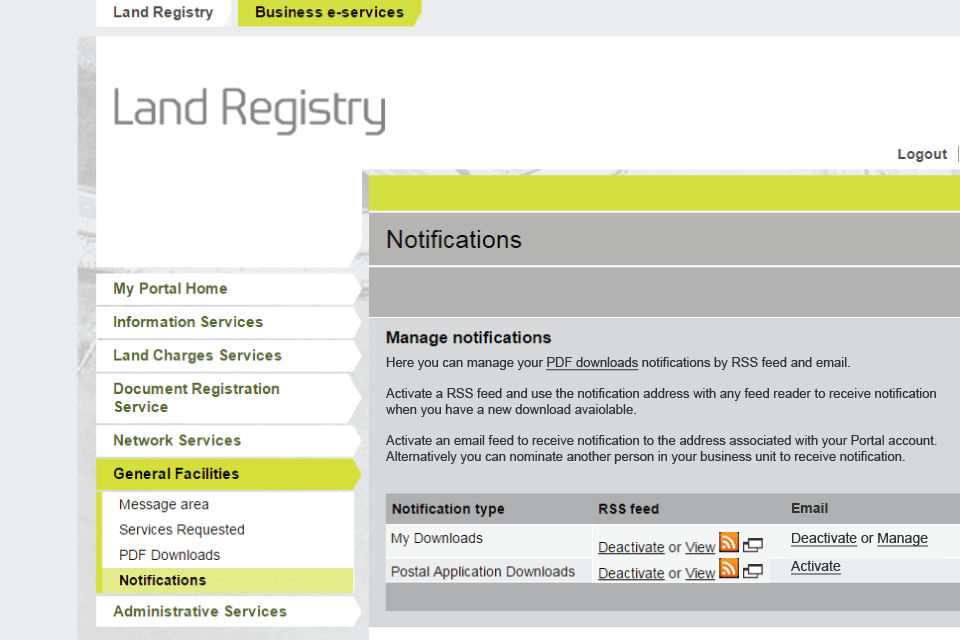
notification new
Manage notifications using our RSS feed
By setting up notifications, or RSS feed, you will automatically receive updates from HM Land Registry when your documents are sent to the portal.
Set up an RSS feed (RSS means Real Simple Syndication) to deliver a message to your web browser or Microsoft Office by following a few simple steps.
.
Select ‘General facilities’, then ‘Notifications’.
To activate the service on your account select ‘Activate’. The RSS Feed is now activated on your account.
notification new
Choose how to view the notification feed
To choose how you view your RSS feed select ‘View the feed’. This will open up a new tab in your Internet browser.
RSS feeds can be read using Internet Explorer or Microsoft Outlook. Other browsers and email clients may not be compatible. All browsers do not support RSS feeds and the customer should consult their IT support if RSS is not compatible with their browser.
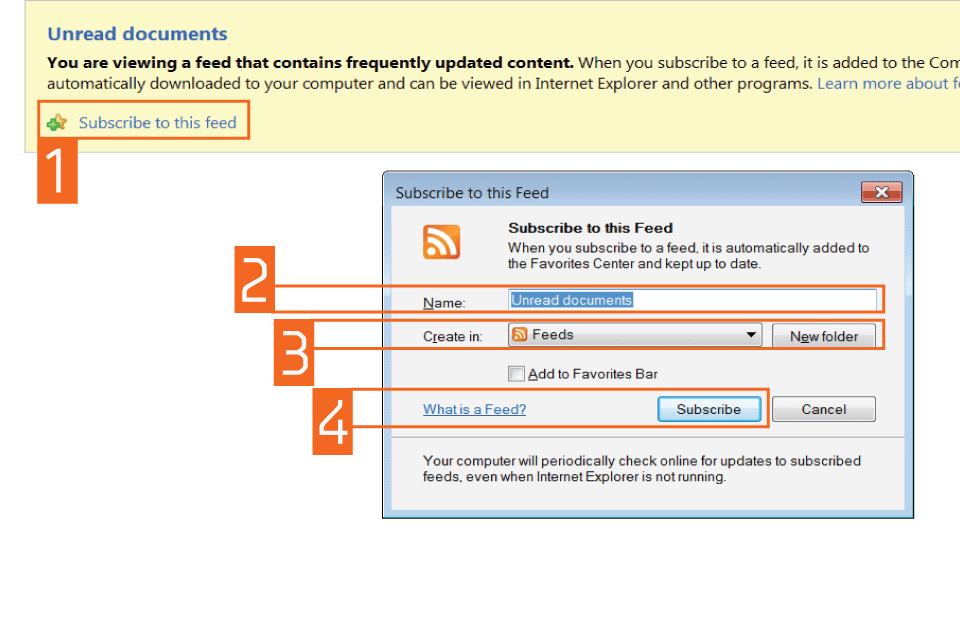
subscribe
Set up the feed in Internet Explorer
- To setup an RSS feed through your Internet browser select ‘Subscribe to this feed’ and this will open a dialogue box.
- Select the field ‘Name’ to insert a name of your choice, which will appear as the title for your ‘Feed list’.
- Select the ‘Create in’ drop down menu to choose where you would like the RSS Feed to appear on your Internet browser.
- Select ‘Subscribe’. A screen will appear telling you that you’ve successfully subscribed to this feed. You will now receive messages from HM Land Registry alerting you when your ordered documents are in the portal.
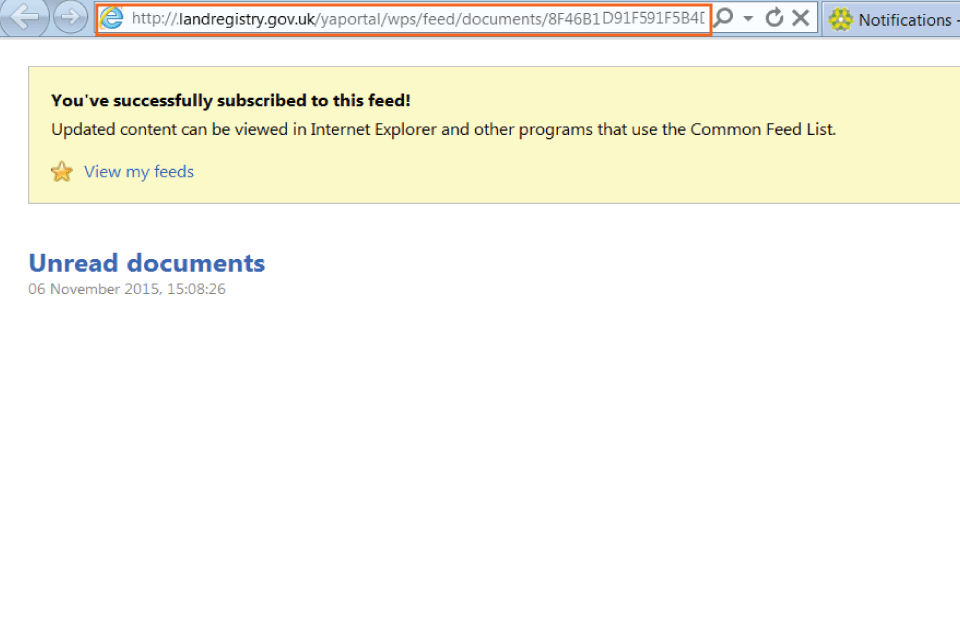
subscribed
Set up Microsoft Outlook
To use Outlook to subscribe to RSS Feeds highlight the URL at the top of the ‘You’ve successfully subscribed to this feed’ page, then Press CTRL+C to copy.
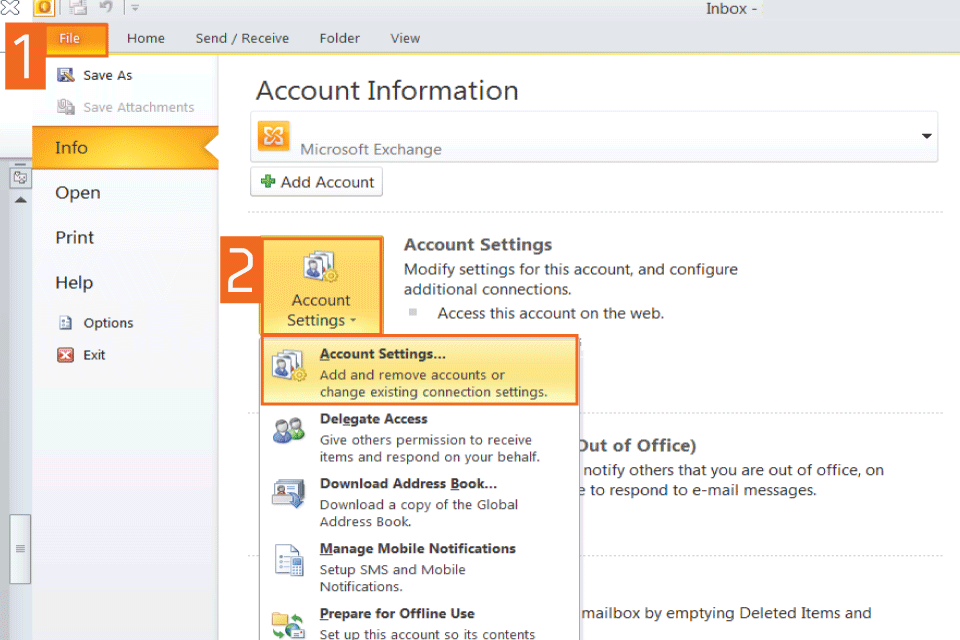
account settings
- Open Microsoft Outlook, then select the ‘File’ tab.
- Select ‘Account Settings’, then ‘Account Settings’ from the drop down menu.
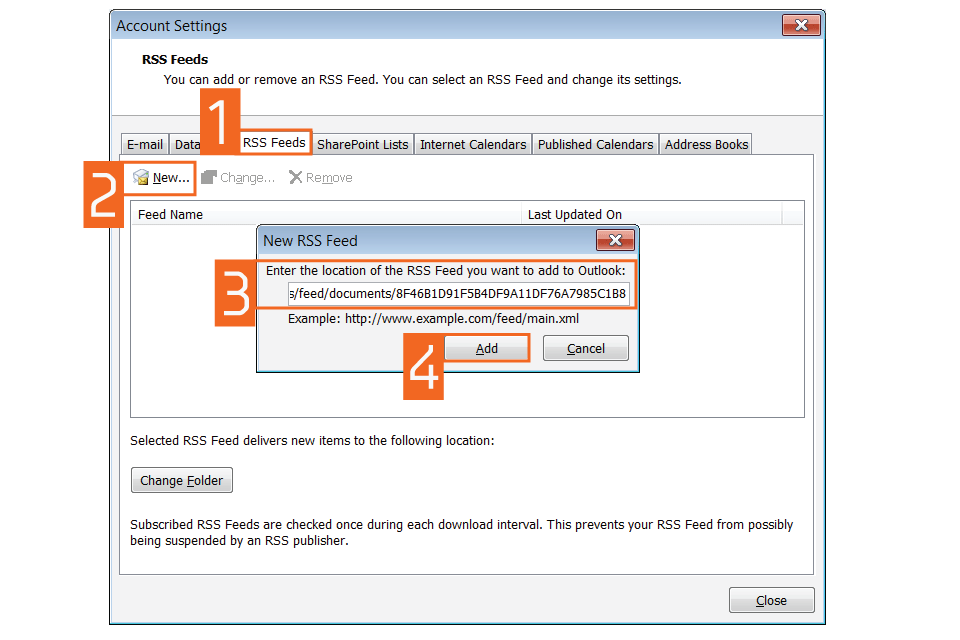
new rss feed
- Select the ‘RSS Feeds’ tab.
- Select ‘New’.
- In the ‘New RSS Feed’ dialog box, type the URL or press CTRL+V to paste the URL of the RSS Feed.
- Select ‘Add’.
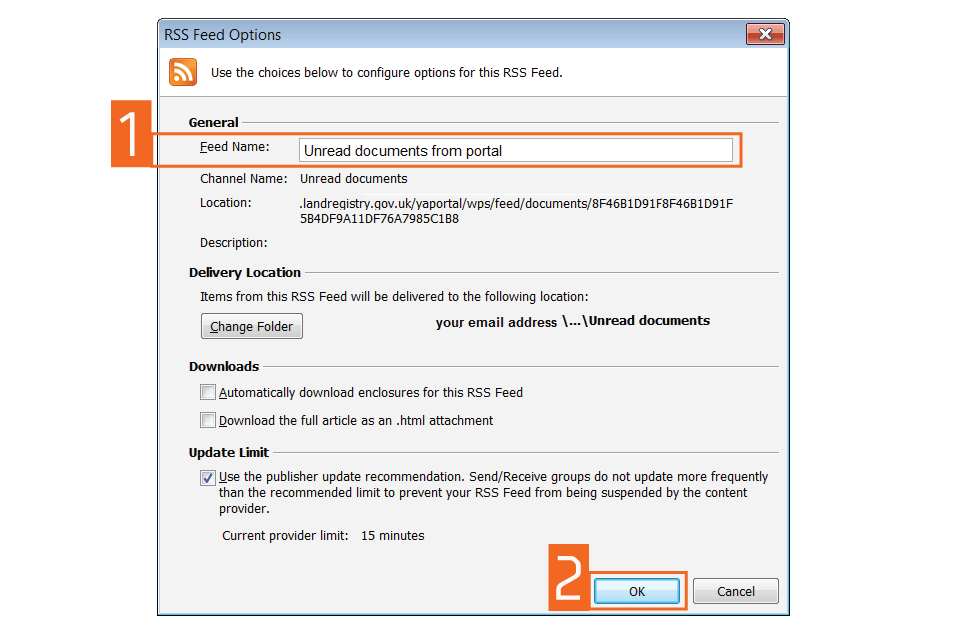
unread documents form portal
- Check the file name.
- Select ‘OK’.
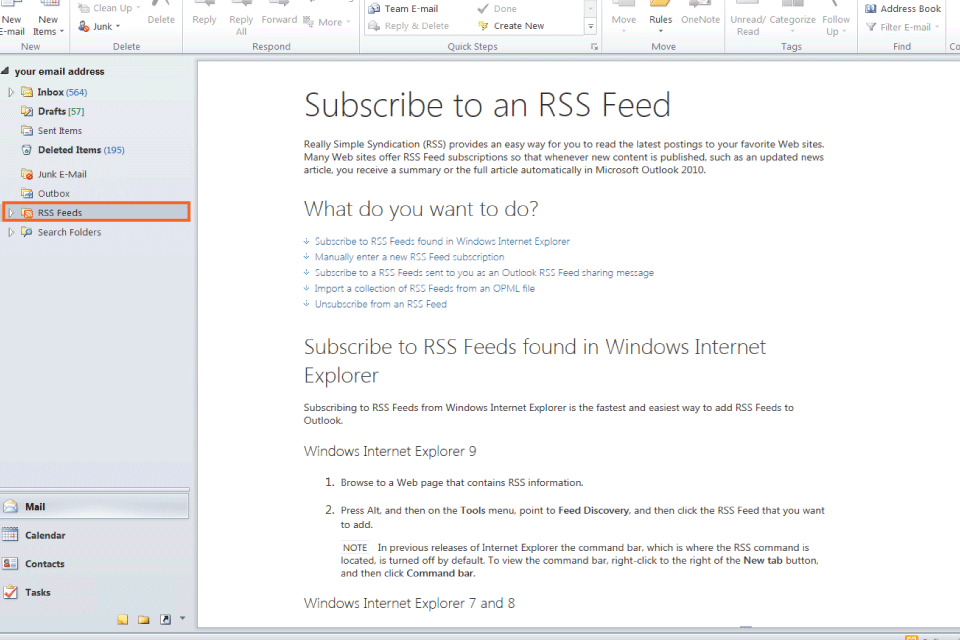
outlook layout
You can now read your RSS feeds by selecting RSS Feeds in the Mail folders.
notification new
Please be aware that HM Land Registry is not responsible for the security of external feed readers and does not provide helpdesk support.
Logout
When you have completed your tasks, select ‘Logout’ at the top of the screen to exit the system securely.
Updates to this page
-
New portal feature: business customers can receive email notifications when their applications results are available for download.
-
First published.