Managing a case - contested
Updated 23 June 2026

© Crown copyright 2026
This publication is licensed under the terms of the Open Government Licence v3.0 except where otherwise stated. To view this licence, visit or write to the Information Policy Team, The National Archives, Kew, London TW9 4DU, or email: psi@nationalarchives.gov.uk.
Where we have identified any third party copyright information you will need to obtain permission from the copyright holders concerned.
This publication is available at /government/publications/myhmcts-how-to-use-online-financial-remedy-services/managing-a-case-contested
1. Before you start
Before you can access financial remedy services using MyHMCTS, you and your organisation must have completed other steps.
1. Set up a HMCTS Payment by Account (PBA) (so that you can pay any relevant fees)
2. Registered your organisation with MyHMCTS
3. Set up your MyHMCTS user account
The MyHMCTS guidance has further information and instructions. If your organisation has an account already, contact the administrator to arrange for your account creation.
Once you have a MyHMCTS account, using your email address and password.
If you need additional help with MyHMCTS email MyHMCTSsupport@justice.gov.uk. We aim to respond within 5 working days.
Also see the guidance for how to complete case administration tasks.
2. View hearing details
Once your case has been submitted and issued, a judge will review it and give instructions on the next steps – this is also known as ‘gatekeeping directions’.
The court will arrange a first hearing based on the judge’s instructions. You will get an email when the hearing has been booked.
Case documents
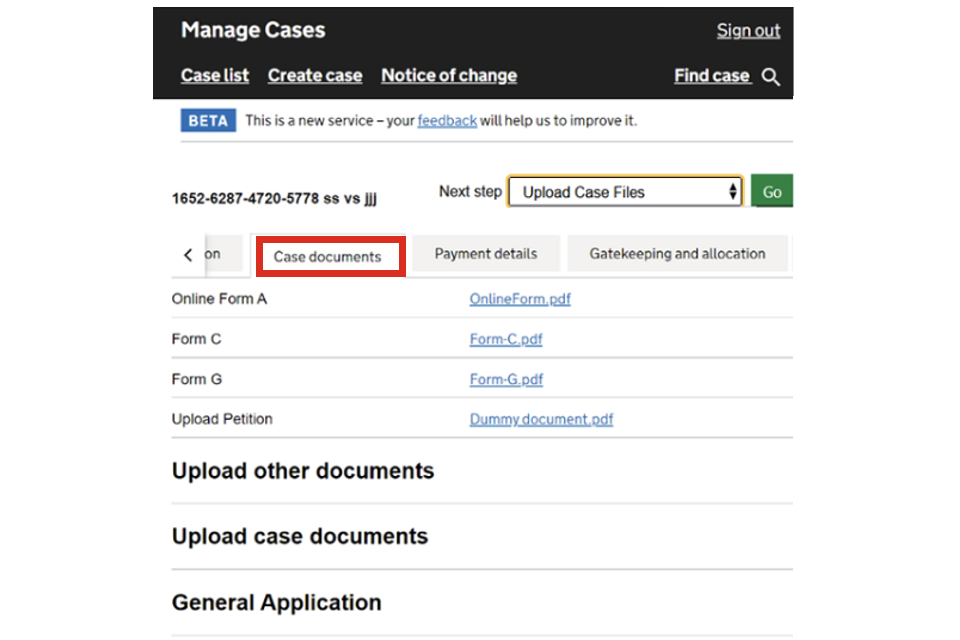
1. Select ‘Case documents’. You will be able to view a sealed version of form A, the divorce documents and the mediation information and assessment meeting (MIAM) documents.
Hearing details and documents
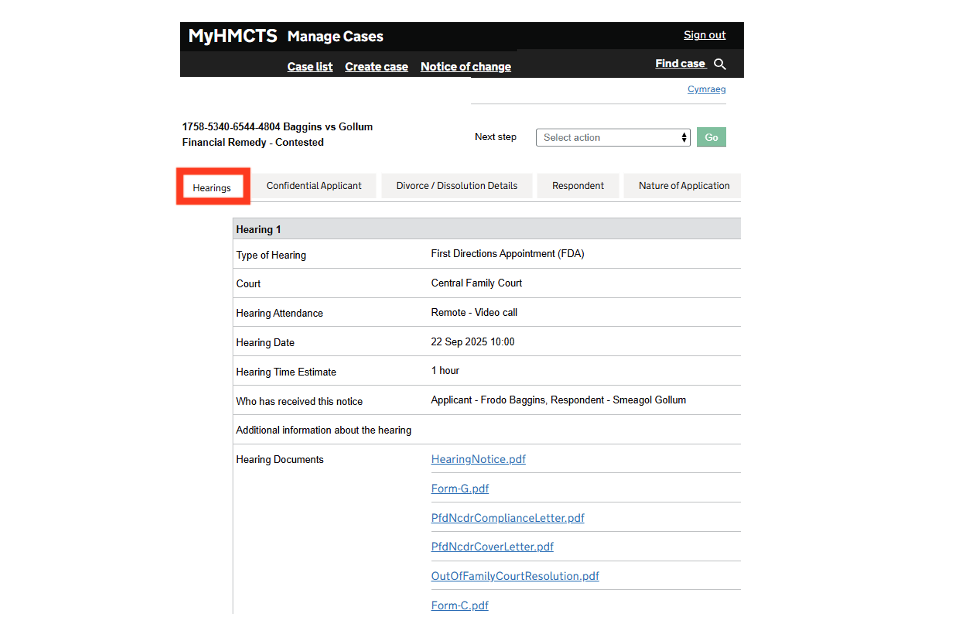
1. Select ‘Hearings’. You will be able to view form C, form G, out of court resolution documents, and president of the family division letters.
If the case is listed for a fast-track hearing, there will be no form G.
If there are any other hearings later in the case, the documents for that hearing will also be available here.
You will only see hearings that the court has chosen to show you. This means the court can keep some hearings private and only give access to the people involved.
If a hearing is cancelled or postponed, you will get a notification. You can also see this in the ‘Hearings’ tab, along with the notice saying it has been cancelled or postponed.
3. Upload evidence in support
You must upload case documents on MyHMCTS – do not submit them directly to the financial remedy centre. You can upload documents at any point during proceedings. These documents will automatically be added to your documents tab and will only be available to you and the court.
Do not use ‘Upload case file’ for:
- correspondence – instead, find the financial remedy court or hearing court’s email address and send it to them
- draft orders for approval after a hearing or agreed orders under the accelerated procedure – instead, use ‘upload a draft order’
- interim, general applications and requests to adjourn – instead, use ’ general application’
- final consent orders to finalise proceedings – instead, use ‘final consent application’
- bundles – instead, use ‘manage hearing bundle’
It is your responsibility to name your files clearly with the:
- name of the related person
- document type
- date the document was created or signed
For example, ‘JaneSmith-FormE-01-05-24’.
1. To upload a document, select ‘Upload Case Files’ from the next step dropdown. Then select ‘Go’.
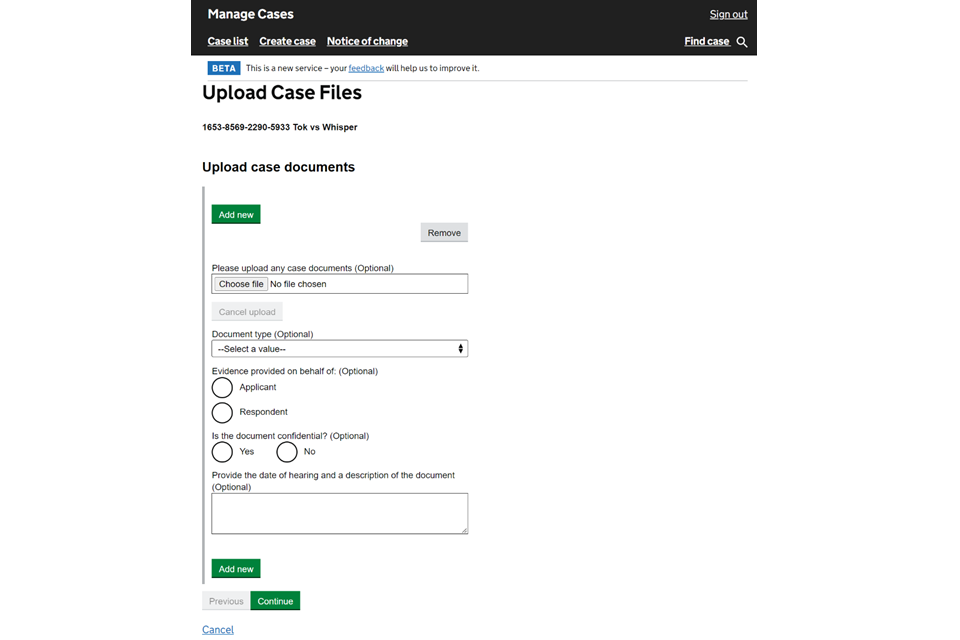
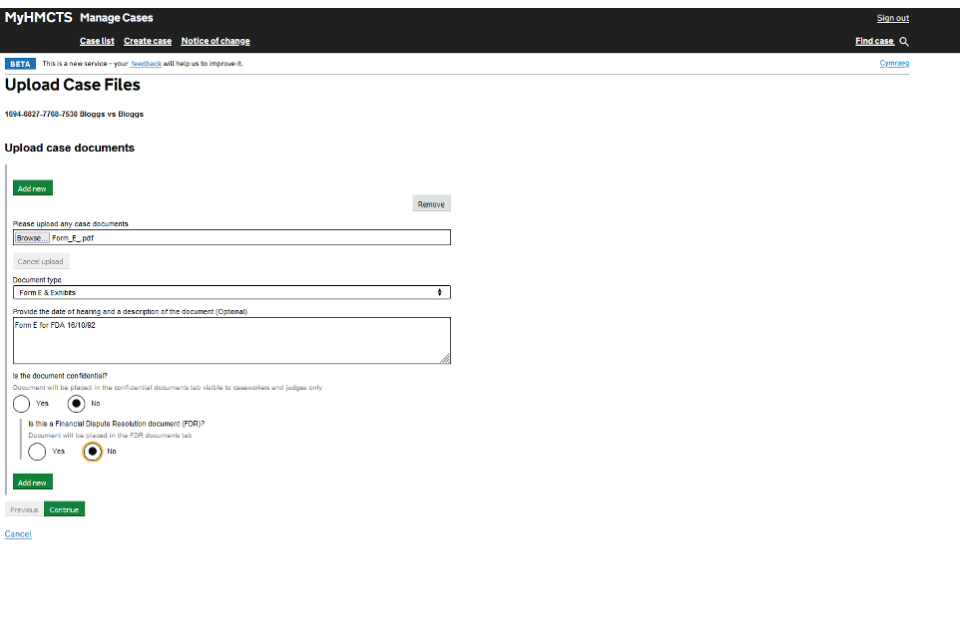
2. Select ‘Add new’ then ‘Choose file’ and browse for the document. Make sure the document name reflects the document being uploaded. For example, ‘JaneSmith-FormE-01-05-24’. This detail is useful when selecting which documents to share.
3. Select the document type from the dropdown and enter any other information about the document, such as a description and the date of the next hearing.
You must avoid selecting ‘Other’ as the document type, unless there is no other option.
If you are uploading:
- N260 costs documents, you must select ‘Form H (costs Estimate)’
- exhibits (for example bank statements, wage slips and other financial documents), you must select ‘Form E and Exhibit’
- exhibits to statement, you must select ‘Statement’
4. Select whether the document should be kept confidential or not. If you select that a document is confidential, it will be stored in the ‘Confidential documents’ tab, which only the court can access.
5. Select whether the document is for a financial dispute resolution (FDR) hearing. If yes, the documents will appear in the FDR tab.
6. If you need to add another document, select ‘Add New’ and repeat steps 2 to 5.
7. When you have entered all information, select ‘Continue’.
8. Check the answers – if you need to make any changes, select ‘Change’ against what you need to change. Once all answers are correct, select ‘Submit’.
9. MyHMCTS will know which party you are acting on behalf of. When you select ‘Submit’ the documents will be added to your documents tab.
If you upload a document to the wrong case, you must contact the court that is dealing with your case. They can remove the document for you.
You must share the documents directly with the other parties. They cannot view uploaded documents automatically.
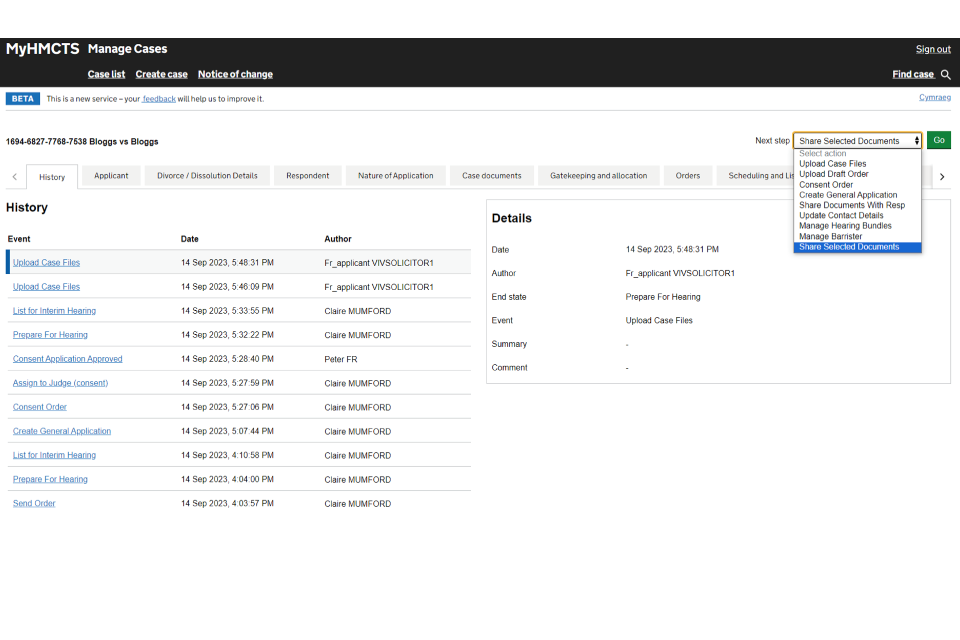
10. To share your documents with the other parties, select ‘Share Documents’ from the next steps dropdown.
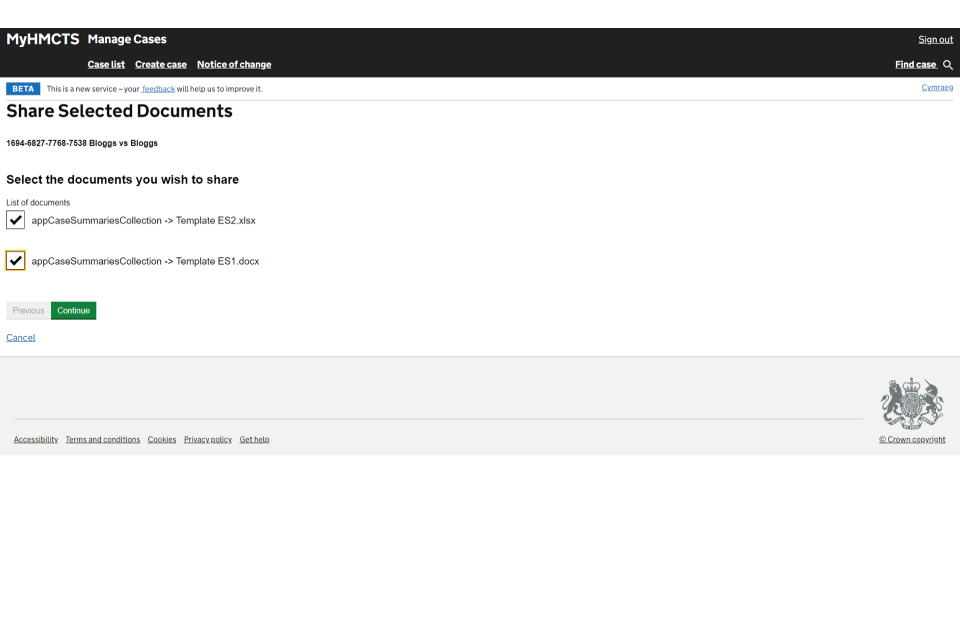
11. Select from the list which documents to share by selecting the tick box next to each document.
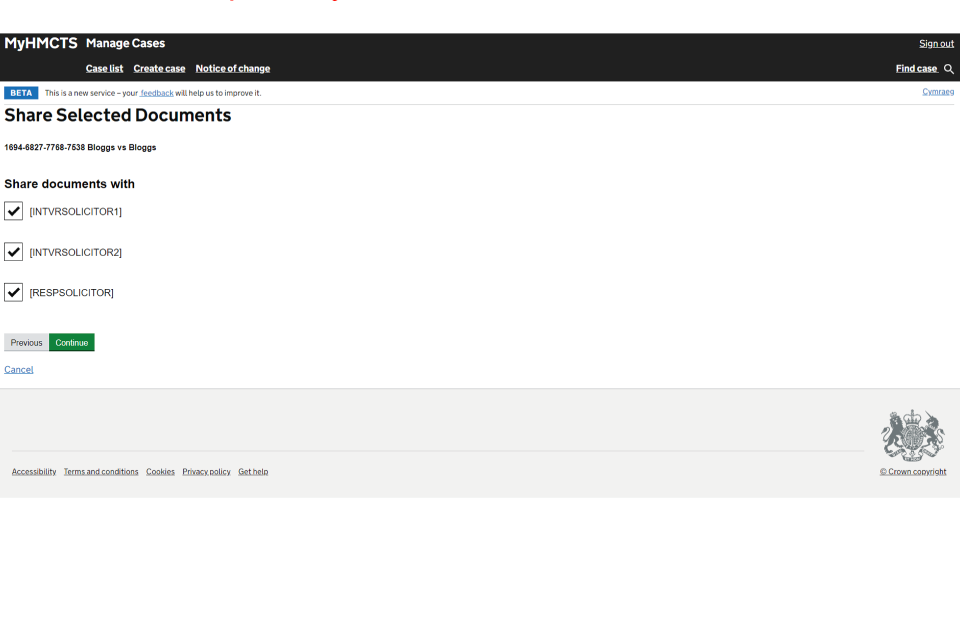
12. Select which parties to share the documents with.
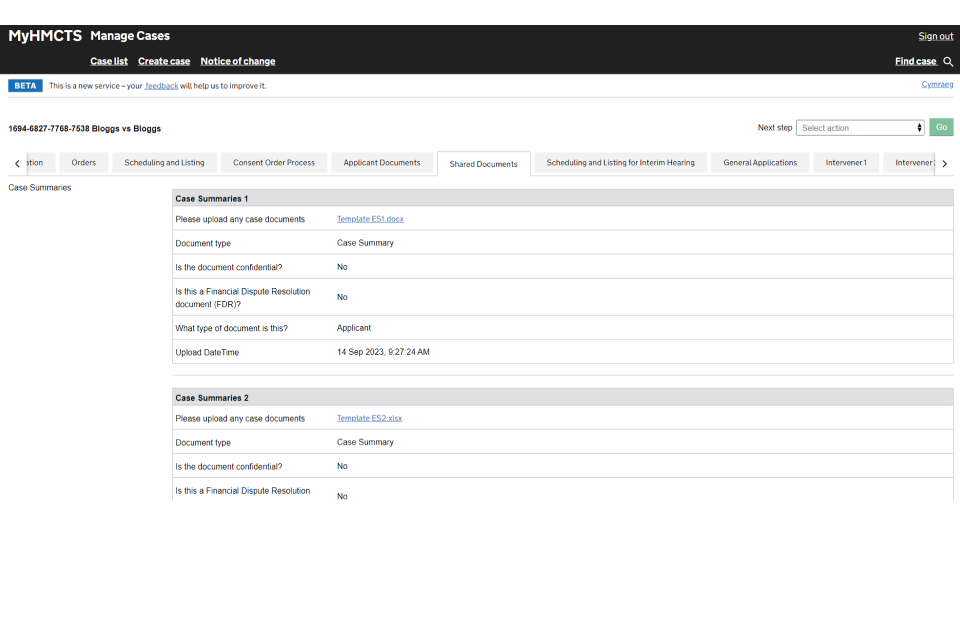
13. Once you have shared the documents, they will appear in the ‘Shared documents’ tab.
4. Upload the hearing bundle
Before uploading the hearing bundle, you must make sure that:
- there are no encrypted documents – documents with signatures may need to be flattened
- PDFs do not use JavaScript
If you need help with this, you must contact your technical department.
1. To upload the hearing bundle, select ‘Manage Hearing Bundles’ from the next step dropdown. Then select ‘Go’.
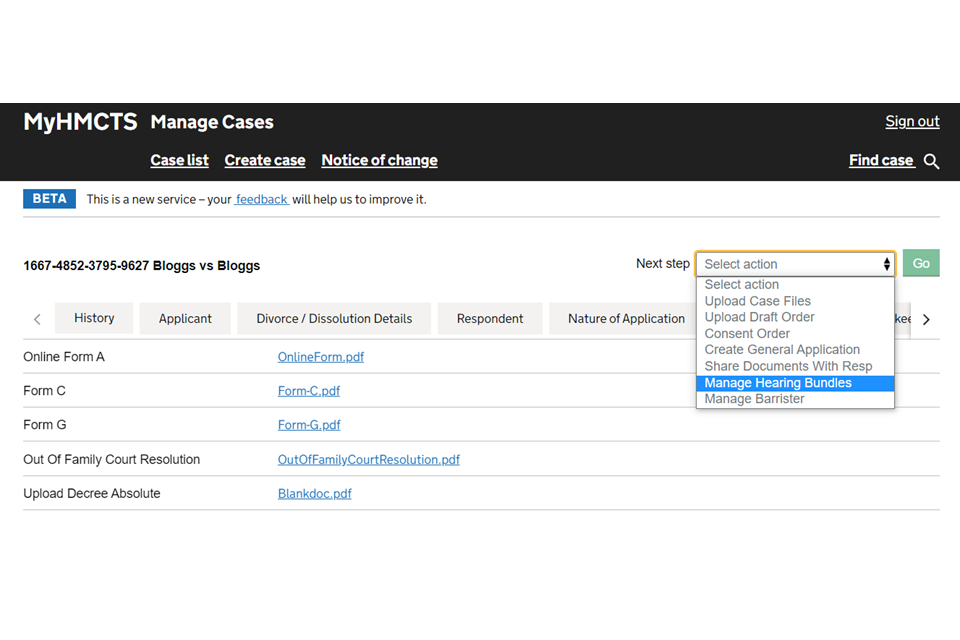
2. Select ‘Add new’ and enter the date to which the bundle relates.
3. Choose whether it is a financial dispute resolution hearing.
4. Select ‘Choose file’ and browse to find the bundle document.
5. Add a description, if relevant. Then select ‘Continue’.
6. To update the bundle, follow the same steps and upload the updated bundle or enter a new hearing date if incorrect.
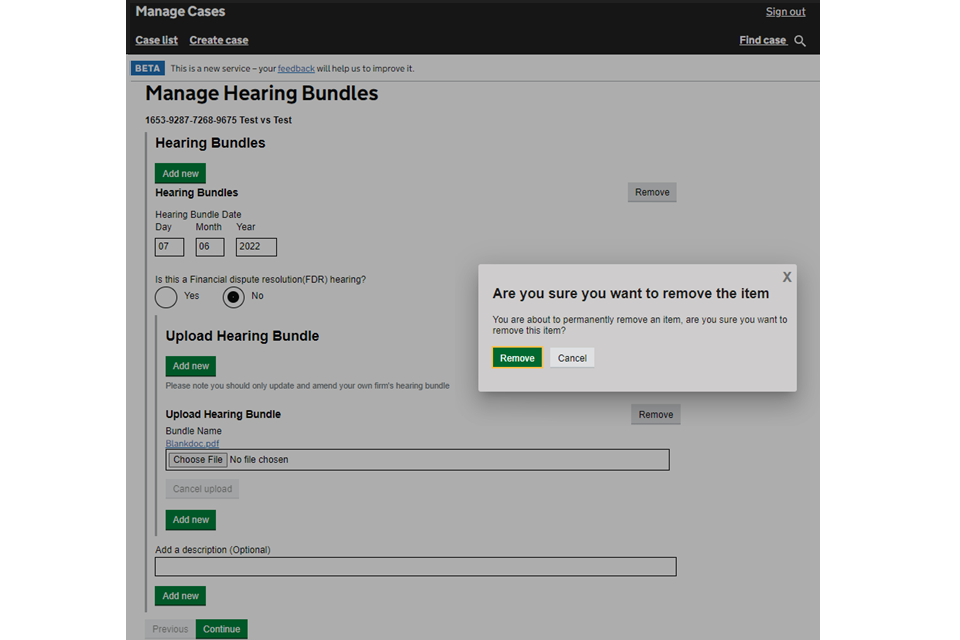
7. To remove a bundle, select and open the right one from those filed. Then select ‘Remove’ against the bundle you want to remove.
8. To confirm you are sure you want to remove the bundle, select ‘Remove’ on the pop-up screen.
5. Upload a draft order
Follow the guidance in this section if you’re applying for an:
- agreed order following a hearing – once submitted, you should only email the court if the judge has asked you to
- agreed order before a hearing as part of the accelerated procedure. This is where you agree with the respondent on directions before the first appointment, and send the agreed order to be approved by the judge without a hearing
For contested orders to adjourn or vacate hearings, or any other interlocutory requests, you must use the general application function.
If you are uploading pre-hearing draft orders with other case management documents, you must use the ‘upload draft orders’ event and select the option ‘A suggested draft order prior to a listing hearing’. The draft order will be listed in the hearing document folder in case file view and will not be available to be approved by a judge.
Once you have an agreed order, you must upload this for the judge to approve.
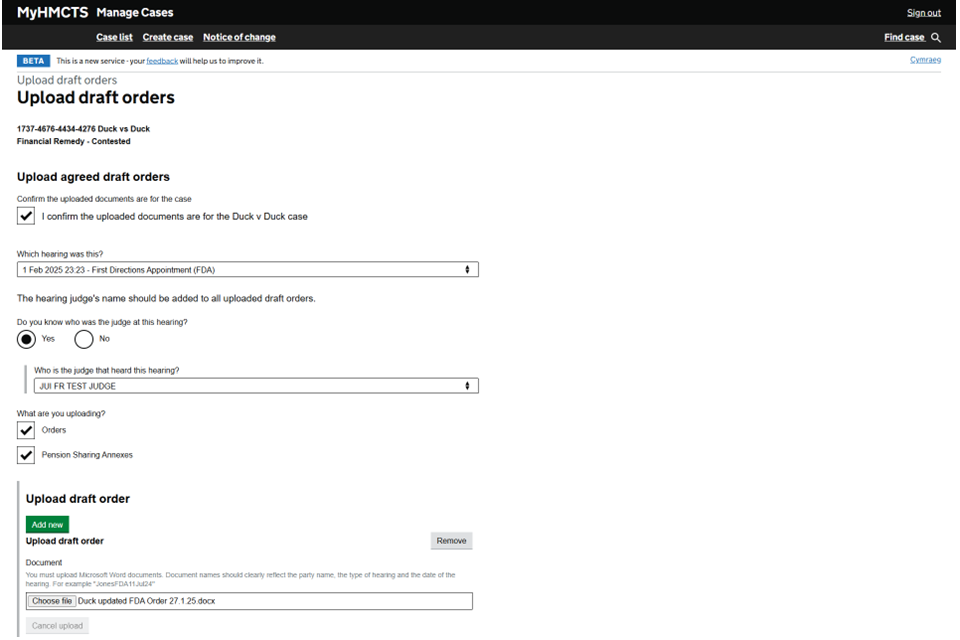
You must use the following information to name the order document - parties’ name, hearing type, and date of hearing - in the format ‘JonesFDA11Mar2023’. The judge’s name and hearing date must be included on the order before uploading.
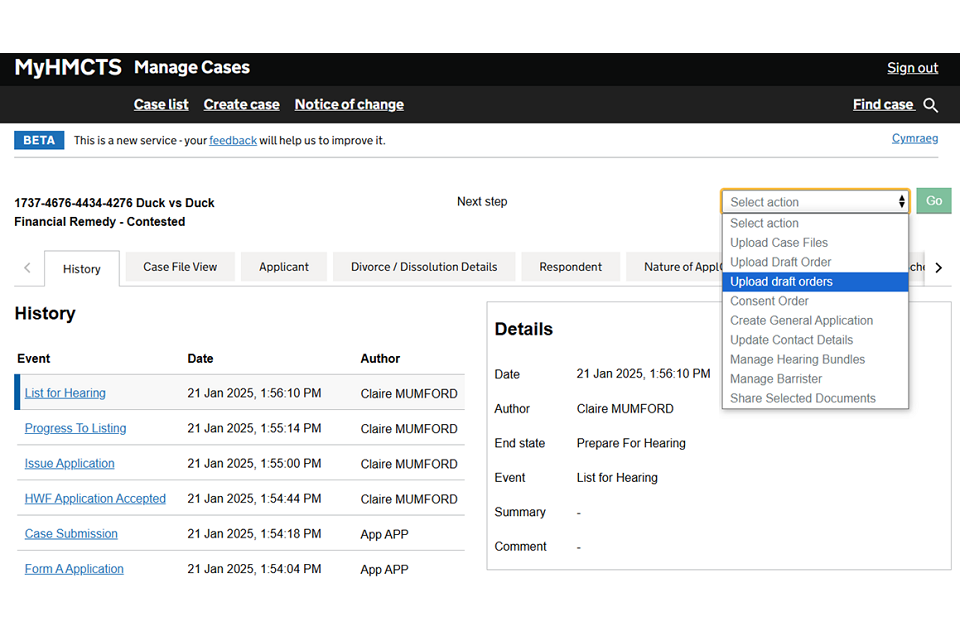
1. Select ‘Upload draft orders’ from the next steps drop down. Then select ‘Go’.
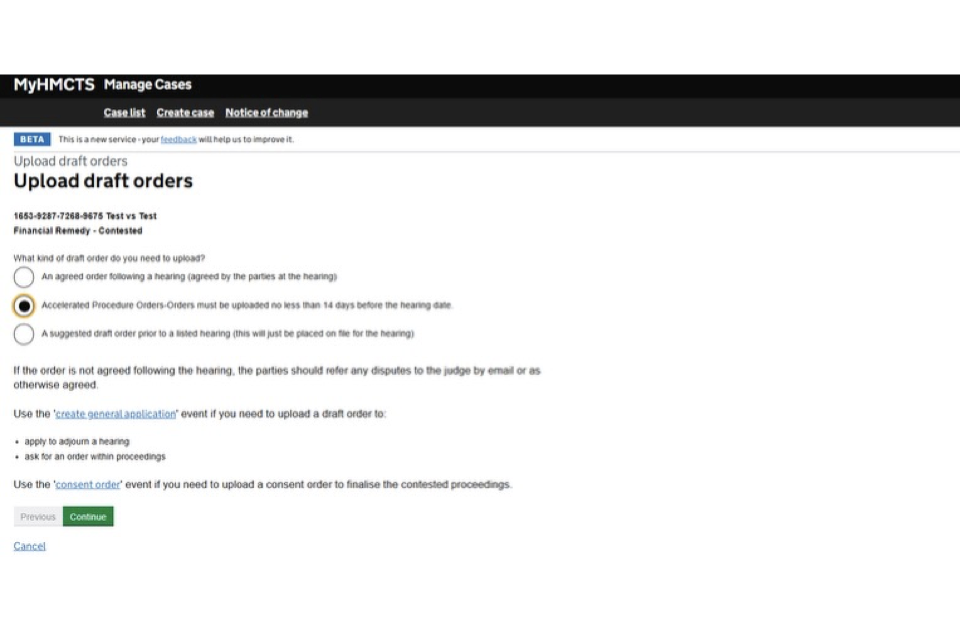
2. Confirm that you are uploading an agreed order following a hearing or an accelerated procedure order, before the first directions appointment (FDA). You must also select this option if uploading an agreed order under the accelerated procedure. If you want to lodge any other type of orders, you can use the links on the screen to take you to those events.
3.Confirm that the names of the parties on the orders match the names of the parties on the case, by ticking the confirmation check box.
Use the dropdown to select which hearing the order relates to and which judge dealt with the hearing. If you do not know the name of the hearing judge, answer ‘No’ instead of selecting from the dropdown. If you have to select this option, it will delay your order being reviewed by a judge.
If uploading an accelerated procedure order, you can only select the FDA hearing type. Selecting any other hearing type will generate an error message.
You must make sure that you select the correct judge from the list. If you select the wrong judge, it will delay your order being approved.
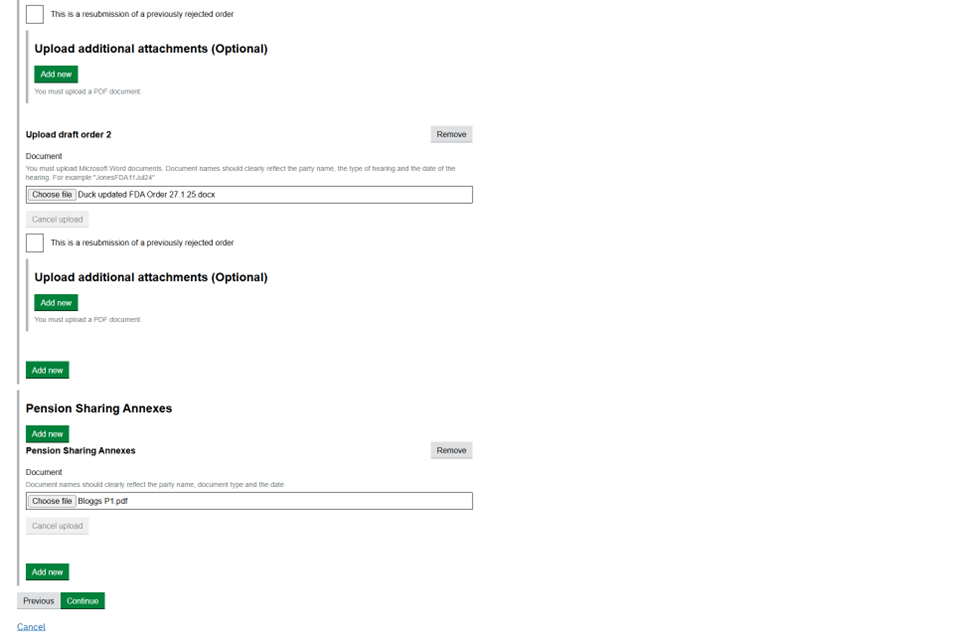
Select if you are adding the orders or pension sharing annexes. Select ‘Choose file’ to find and add each document. To add more documents, select ‘Add new’. When you have added all the documents, select ‘Continue’ to confirm your selection.
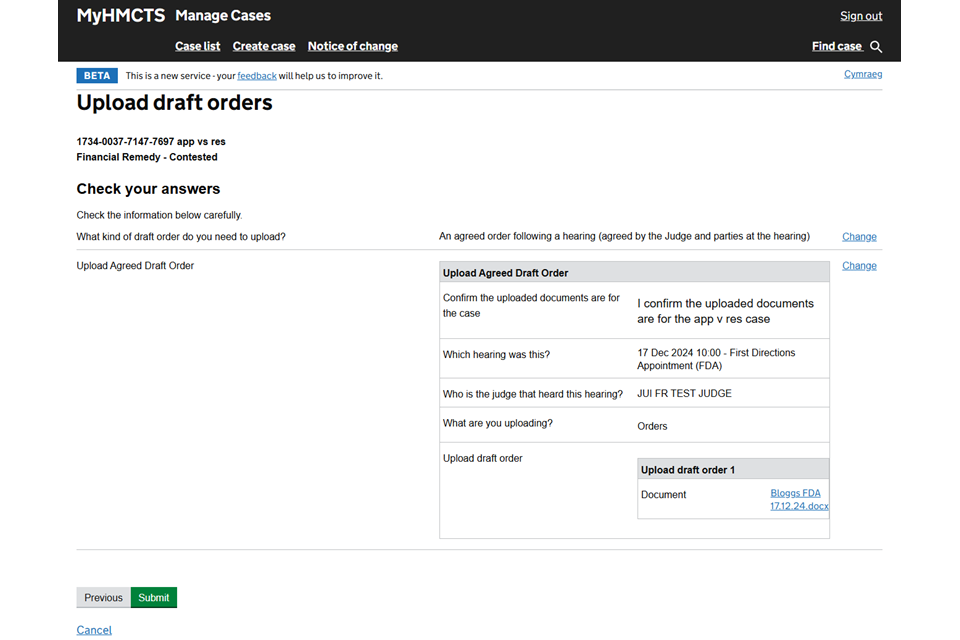
4. Check your answers. If you need to edit an answer, select ‘Change’ to go back to the appropriate question. If all your answers are correct, select ‘Submit’.
5. Once the orders have been successfully uploaded to the case, a confirmation screen will appear. Select ‘Close and return to the case details’.
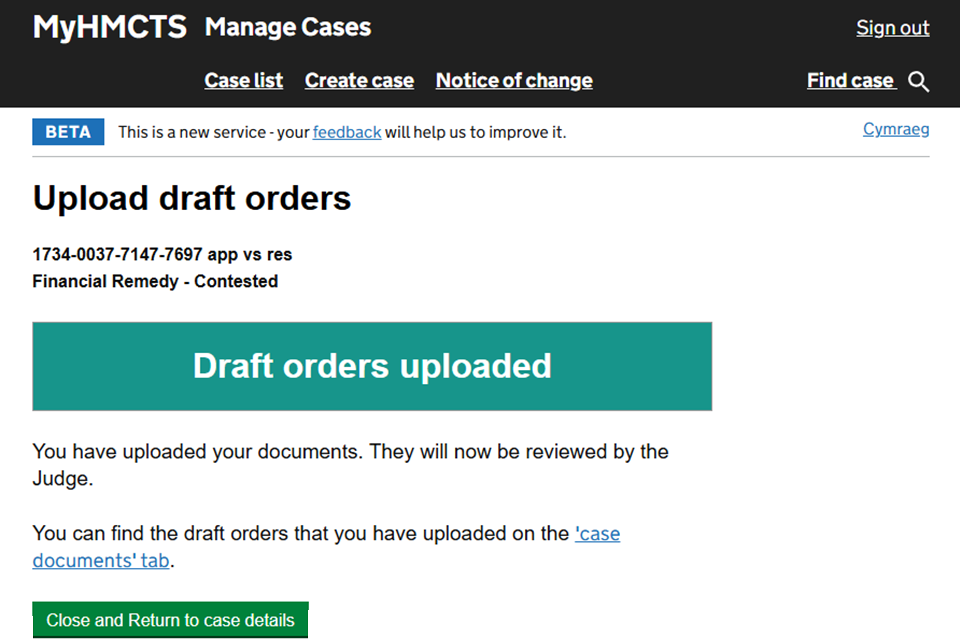
When the draft orders have been uploaded, these will appear under the ‘Post hearing draft orders’ folder in case file view.
If the judge approves an order, court staff will process it and you will receive a notification. If the judge returns an order for you to make changes, you will receive a notification automatically.
If you are uploading a resubmitted amended draft order, repeat the steps in this section making sure you select ‘This is a resubmission of a previously rejected order’.
Any orders created by the court using the ‘Create general orders’ function will appear in either ‘Applicant documents’ or ‘Respondent documents’ – depending on who the court sends the order to. This is so confidential orders can be made without the other party having access.
6. Add a general application to the case
Follow the guidance in this section if you are adding a non-confidential general application.
If you are adding a confidential general application, you should use the ‘Upload Case files’ function, making sure to select ‘Confidential’. You should then email the court to tell them that the application has been submitted as a case file due to confidentiality.
You should also follow the guidance in this section if you’re applying to:
- vacate a hearing by consent
- vary a maintenance order
- capitalise maintenance
- set aside a financial remedies order
For agreed orders following a hearing, you must use the upload a draft order function.
You can make a general application at any stage of the case, for example if you are seeking to have a hearing adjourned. You must upload the application and any draft order in PDF format.
1. Select ‘Create General Application’ from the next steps dropdown list. Then select ‘Go’.
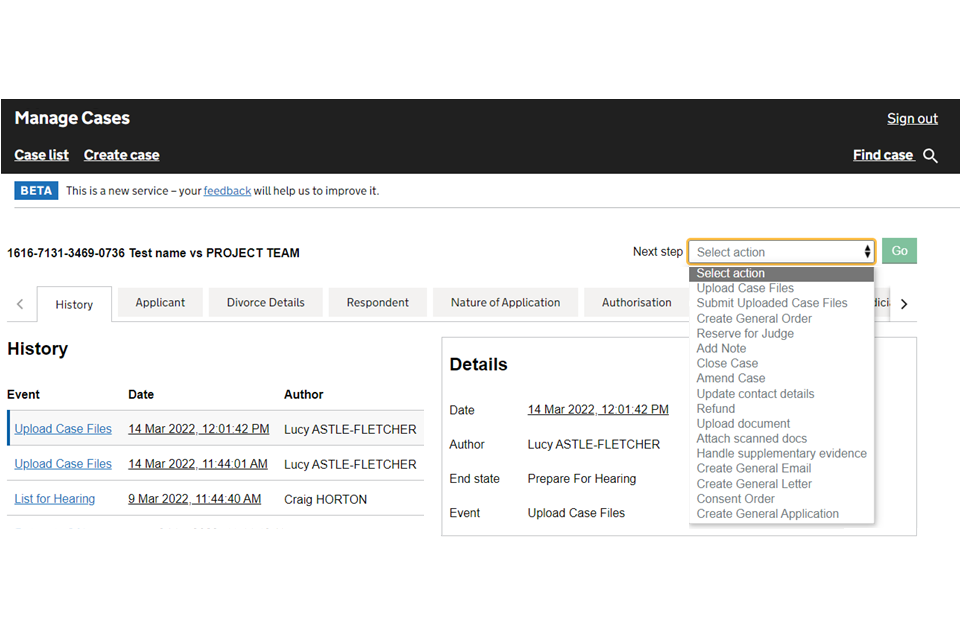
If previous applications on the case are listed, make sure to not overwrite them.
2. Select ‘Add new’ to create a new general application.
3. Select ‘Applicant’ as the person applying.
4. Select ‘Yes’ if you need a hearing. Enter the amount of time you estimate you’ll need for a hearing and any special measures needed from the court.
5. Select ‘Choose file’ to upload the general application.
6. Select ‘Choose file’ to upload any supporting documents.
7. Select ‘Continue’.
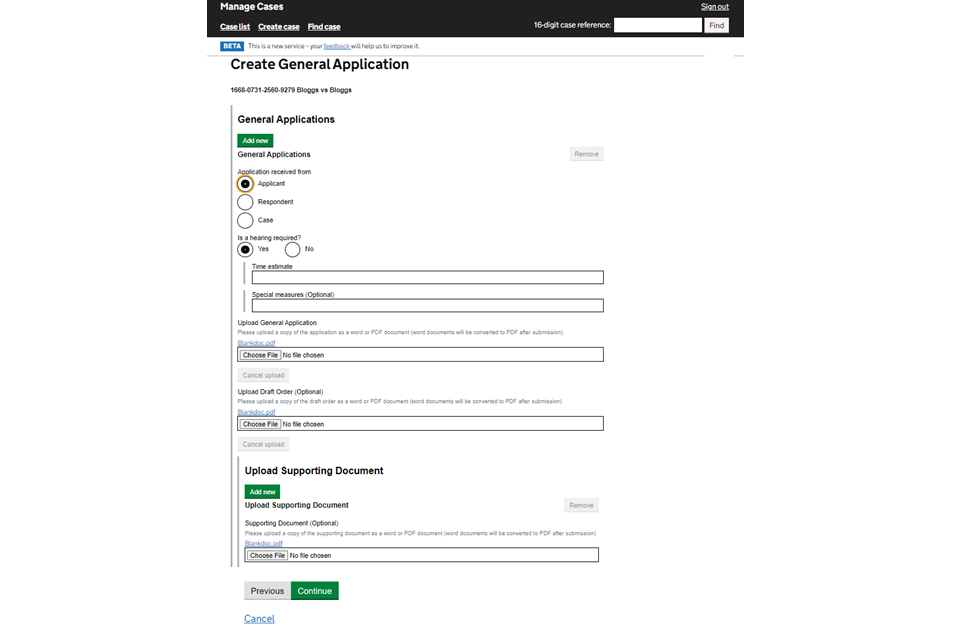
8. If appropriate, you can add an event summary and description. When ready, select ‘Submit’.

When you submit, the court is notified of the application and they will contact you to arrange payment, if required.
9. When the judge has considered the application, you will be able to view their comments in the ‘Case documents’ tab.
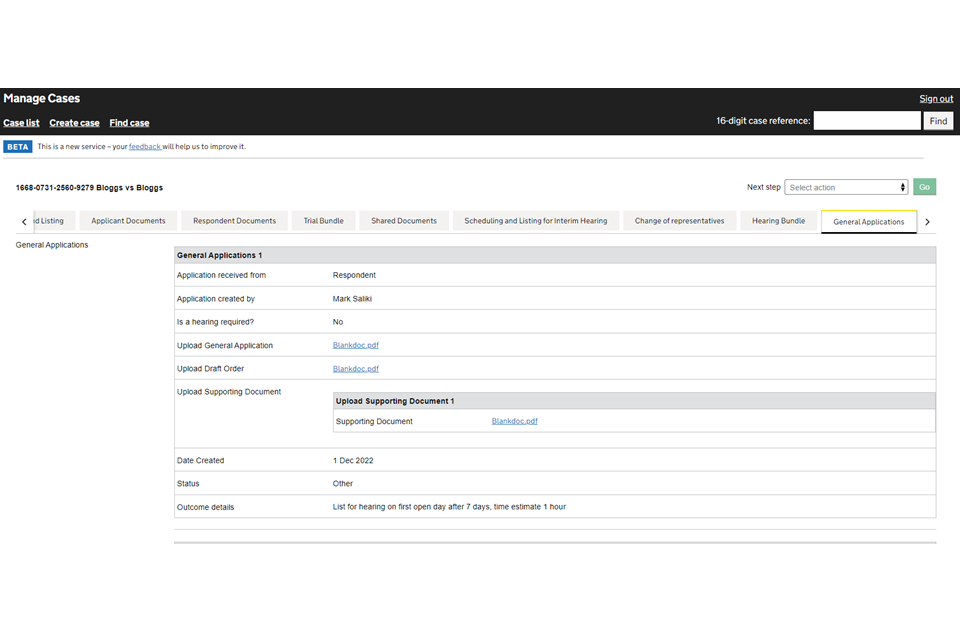
You will also receive a copy of the application, draft order and the court’s directions in the post.
You can ask the court to remove your application if:
- it has been filed by mistake
- you wish to withdraw your application and no action has been taken on the case
7. Enforcement application
You must use the general application function to make an enforcement application. You must upload the application, any draft orders and supporting documents in PDF format.
To add a confidential application, you must use the upload case files function, making sure to select ‘Confidential’.
You must email the court to tell them that the application has been submitted as a case file because of confidentiality.
8. Add a final consent order to settle the proceedings
Applicant and respondent solicitors can use the ‘Consent Order’ function if both parties:
- agree in full on the proceedings
- want to finalise the proceedings
Do not use the ‘Consent Order’ function if the agreement is recorded at a hearing, or shortly after a hearing, before a particular judge. In these circumstances follow the judge’s instructions or see the guidance on how to upload a draft order.
If you are making a general application by consent, you must use the general application function.
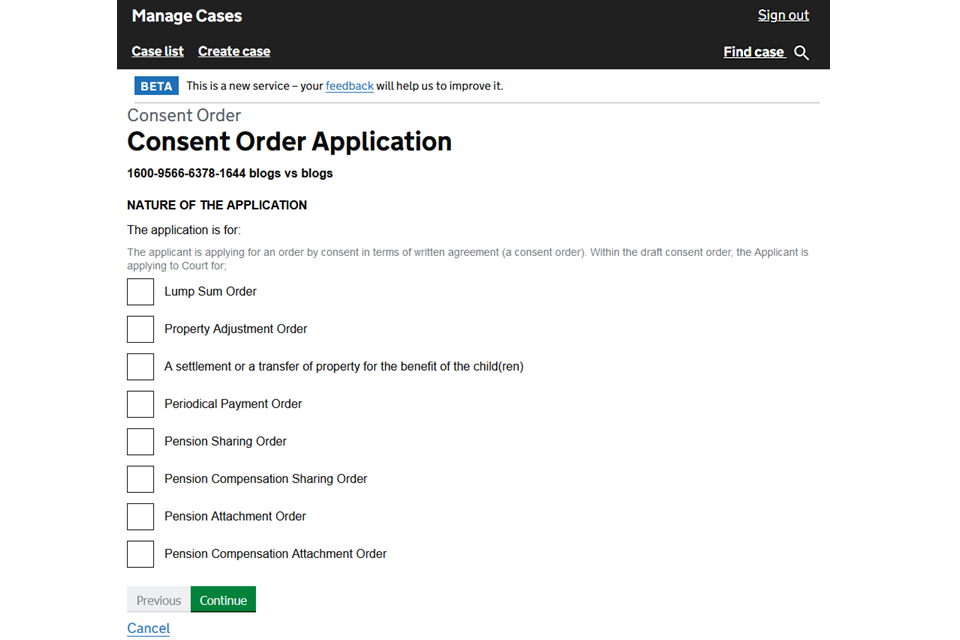
1. Select ‘Consent Order’ from the next steps dropdown menu.
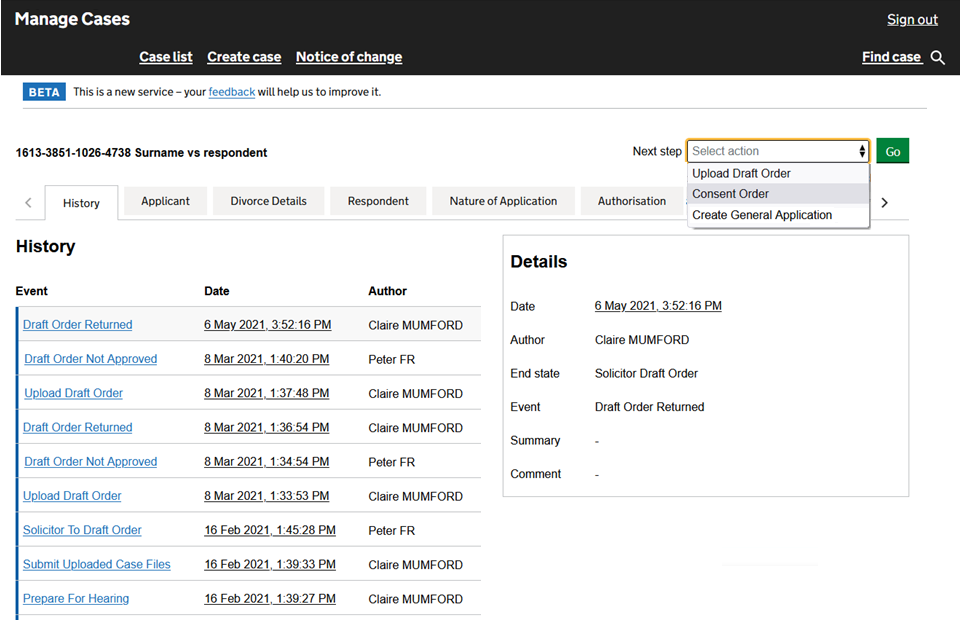
2. Select the nature of the application. Then select ‘Continue’.
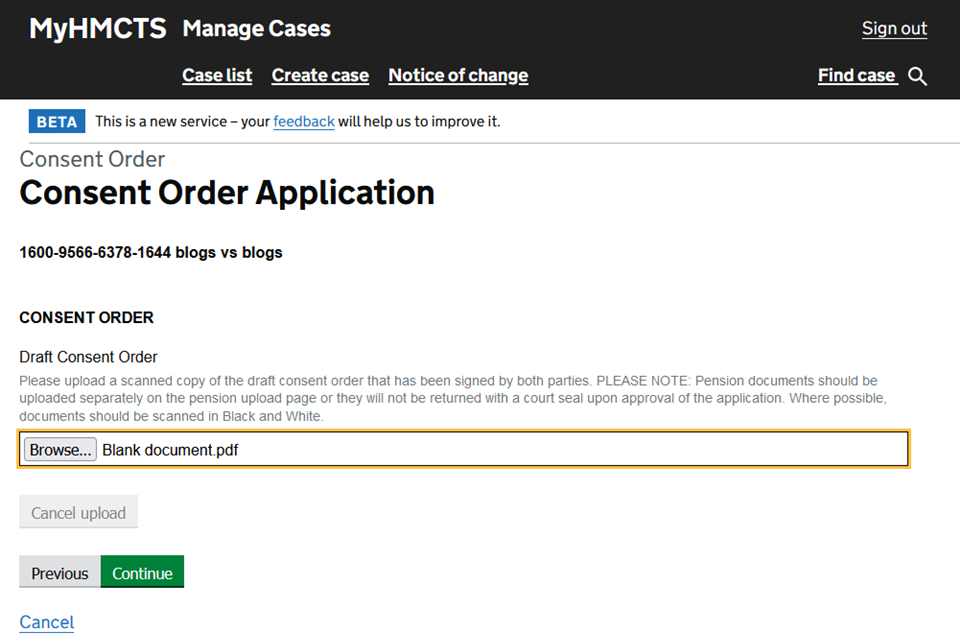
3. Browse for and upload a copy of the draft consent order in PDF format. Then select ‘Continue’.
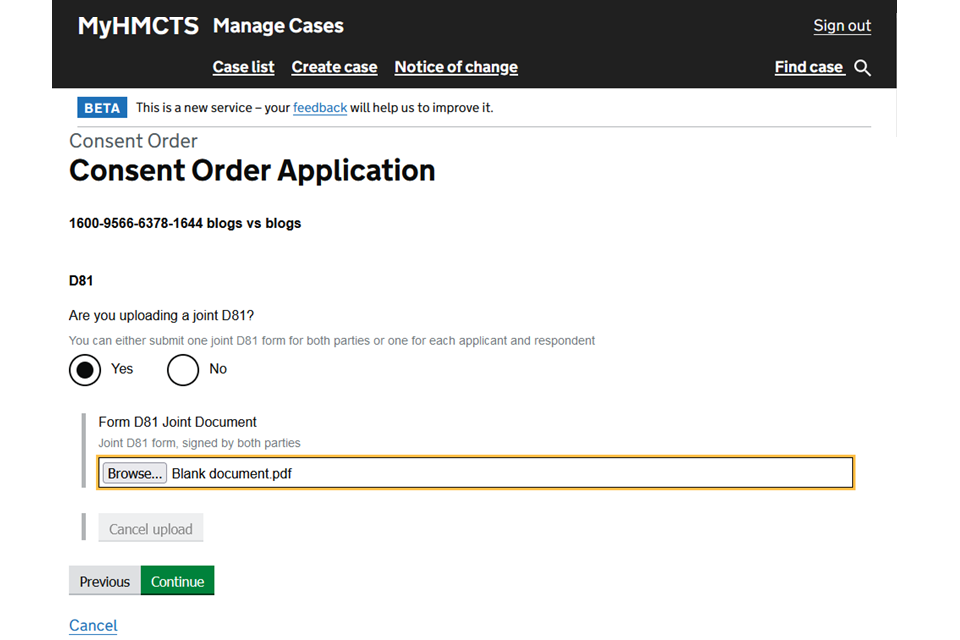
4. Browse for and upload a copy of the D81 form – this is to provide information about the parties’ financial situation to support your application for a consent order.
5. Select whether the copy you are uploading is a joint D81 with the other party. Then select ‘Continue’. If a D81 is not needed because you have uploaded form E documents, upload a blank document to continue.
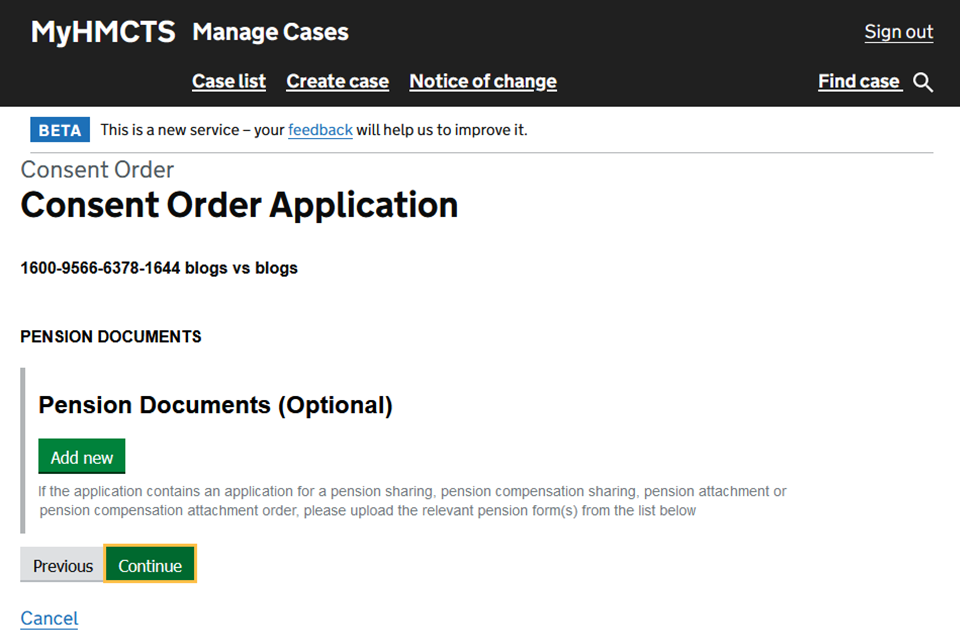
6. If you are applying for a pension sharing or attachment order, select ‘Add new’ and upload a PDF copy of the documents. Then select ‘Continue’.
7. Select ‘Choose File’ and upload a copy of the latest divorce document – either the conditional order (also known as ‘decree nisi’) or final order (also known as ‘decree absolute’). Then select ‘Continue’.
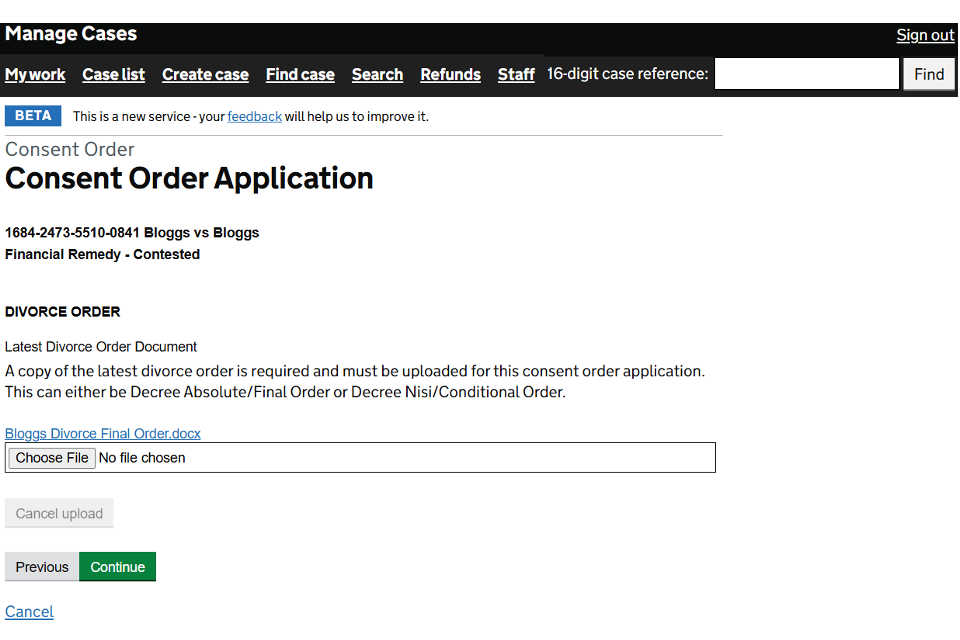
8. Check your answers. If you need to amend anything, select ‘Change’ next to the appropriate answer. When everything is correct, select ‘Submit’.
When you have submitted the consent order, the court will contact you to arrange payment of any fees. The case will be referred to a judge for directions.
When the judge has made a decision, the order will be available in the ‘Consent Order Process’ tab. The court will email you when the order is available.
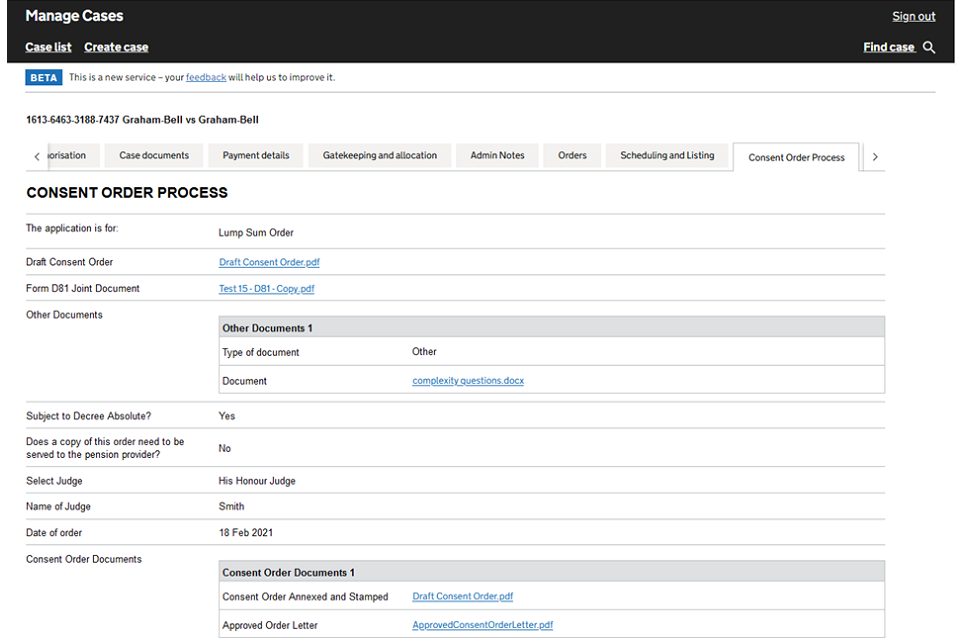
9. Submit a notice of change
You can submit a notice of change (or acting) on MyHMCTS for cases issued online, or when a case is issued on paper but then uploaded to MyHMCTS by the case worker.
Use the 16-digit financial remedy case number, not the divorce case number. Your notice of change will fail if you use the divorce case number.
Once you have submitted your notice of change, you will be able to access the case immediately.
Use a notice of change through MyHMCTS to:
- change the solicitor or firm on the case
- add a solicitor where the applicant was previously unrepresented
If you want to stop representing a client, you must follow the steps in stop representing a client.
Find out how to submit a notice of change in MyHMCTS.
10. Stop representing a client
You can make a request to stop representing a client.
If you added a barrister to the case who will no longer represent the client, you must remove them before making this request. You’ll need to follow the steps for removing a barrister.
1. Select ‘Stop representing a client’ from the next step dropdown. Select ‘Go’.
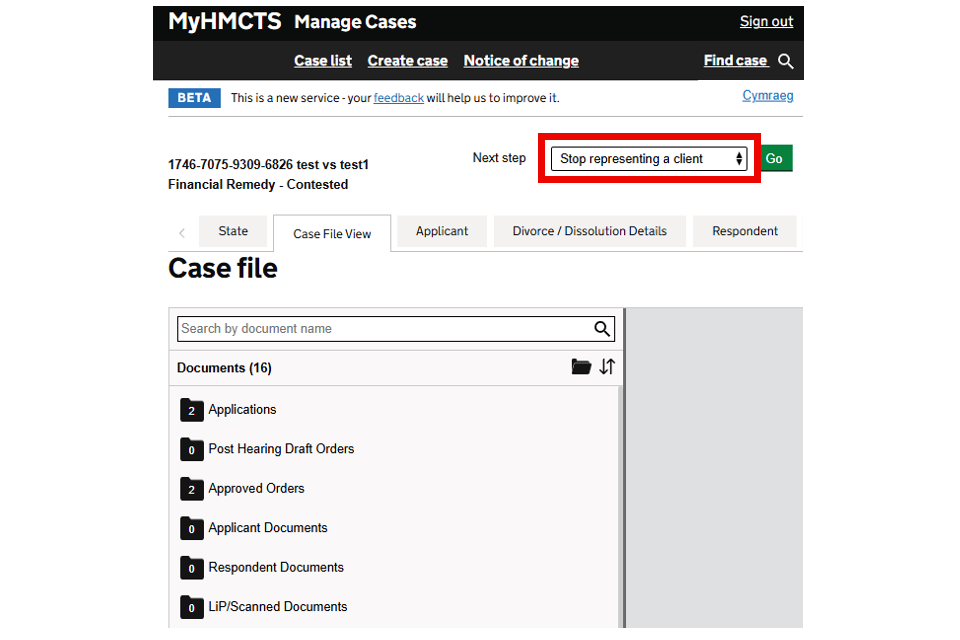
2. Enter your client’s address. This is the address where documents will be served.
3. Choose whether to keep the respondent’s contact details private from the applicant.
4. Confirm whether your client agrees to you stopping representing them.
If you select ‘No’, you will be asked if you have judicial approval.
5. Select ‘Continue’.
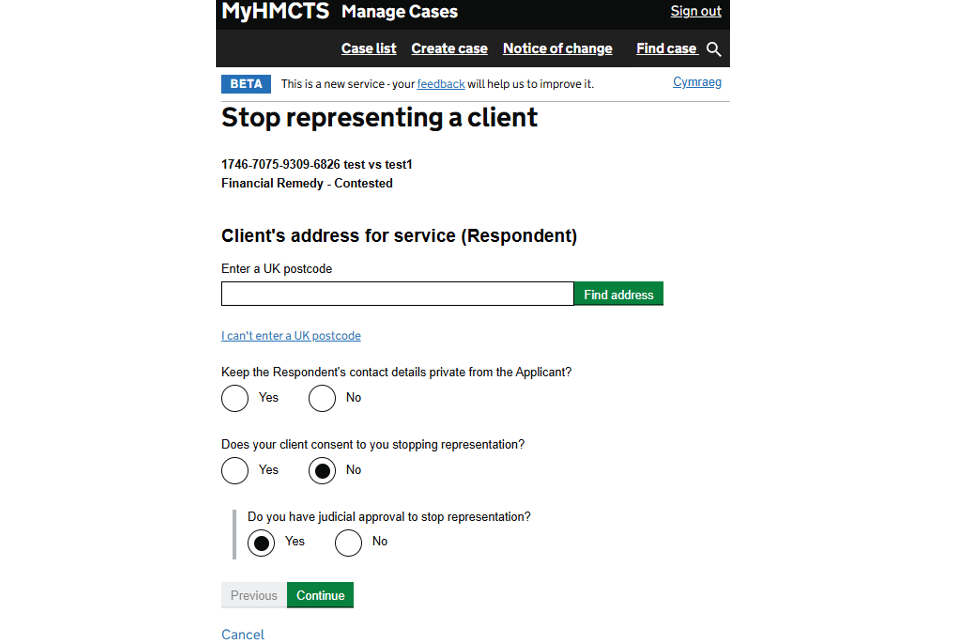
6. Check your answers and select ‘Submit’.
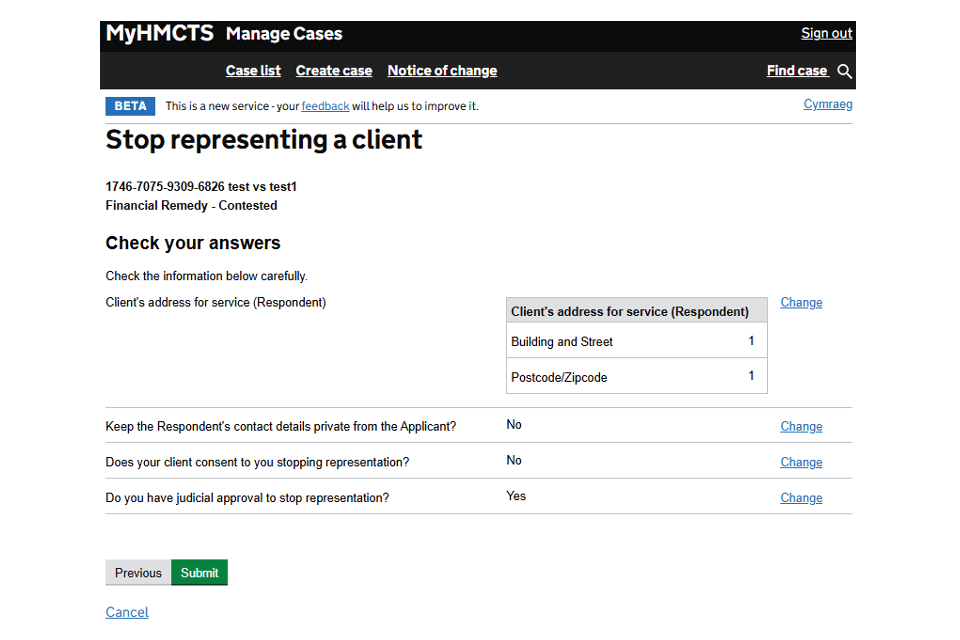
Your request will be processed and your access to the case will be removed.
11. Add or remove a barrister
Add a barrister to a case
When you instruct a barrister, you can give them access to the case. They must be registered with MyHMCTS before you can add them.
If the client instructs the barrister directly, the barrister must notify their local financial remedy centre, who can add them to the case.
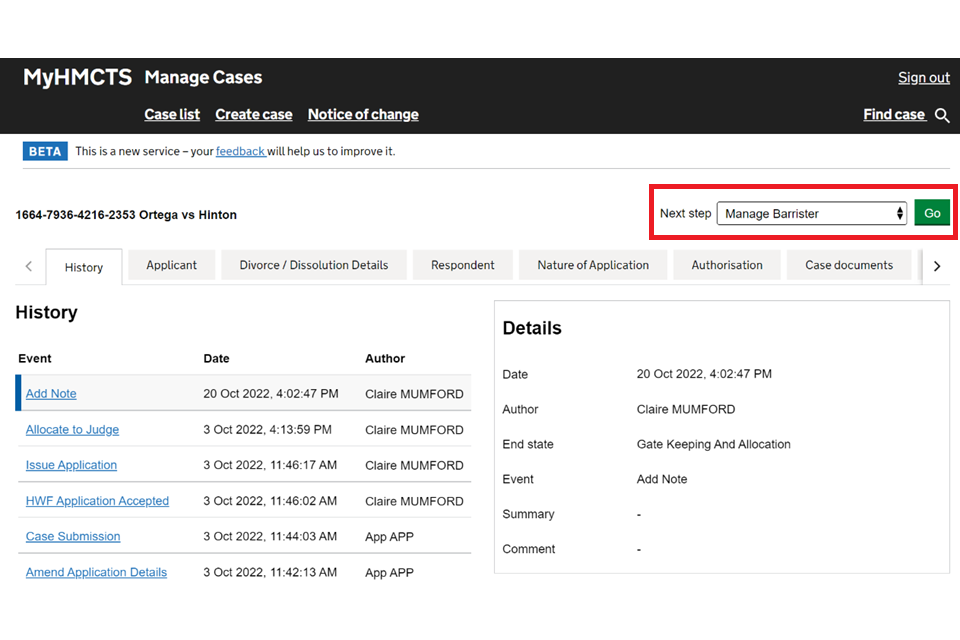
1. Open the case and select ‘Manage Barrister’ from the next step dropdown menu. Then select ‘Go’.
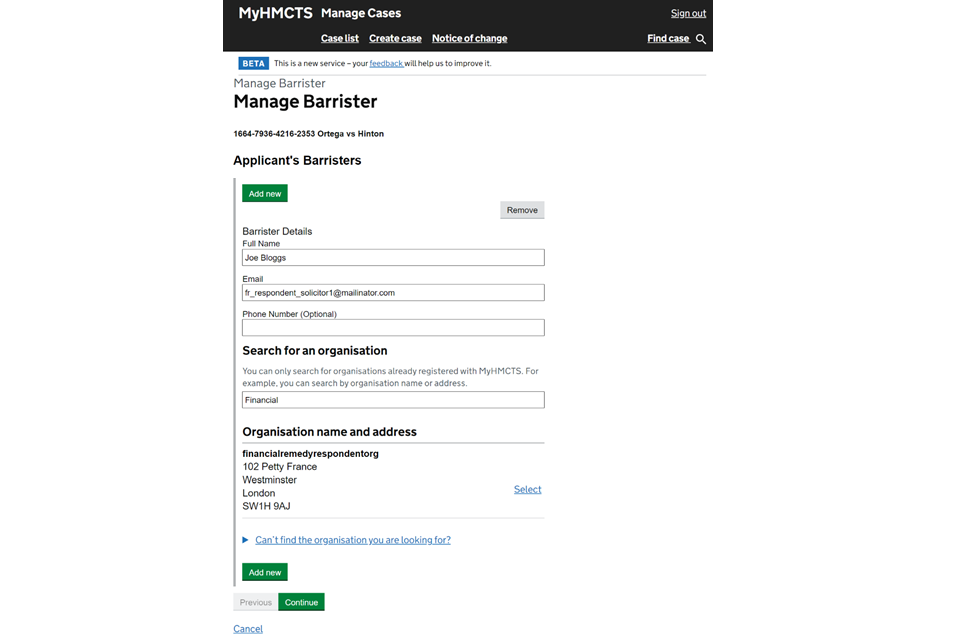
2. Select ‘Add new’ then enter the barrister’s details. Use the ‘Search for an organisation’ box to find and select the barrister’s firm. The details you enter must match the barrister’s details as they are registered on MyHMCTS.
3. If you need to add more than one barrister, select ‘Add new’ again and repeat step 2. You can also do this later by selecting ‘Manage Barrister’ and following the same steps.
4. Once you have added all the barrister details, select ‘Continue’.
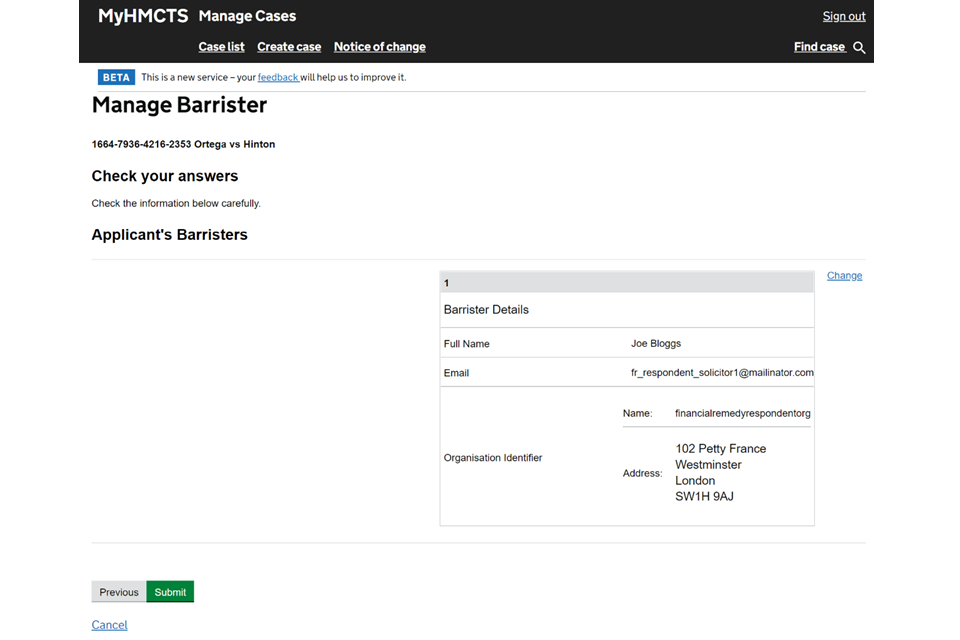
5. Check your answers. If you need to amend anything, select ‘Change’ next to the appropriate answer. When everything is correct, select ‘Submit’.
6. You will return to the History tab to see the event has updated to ‘Manage Barrister’.
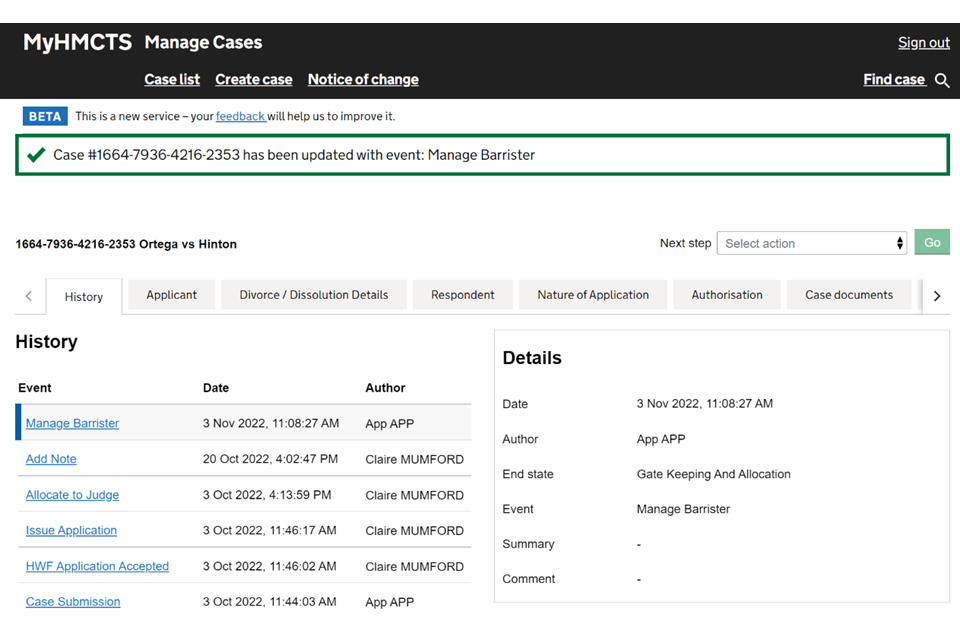
The barrister and the other party or their solicitor will receive an email to say they have been added to the case. The case will also appear in the barrister’s case list.
They will have full access to the case to upload and manage case documents and orders.
Remove a barrister from a case
You can remove a barrister from a case when they are no longer instructed.
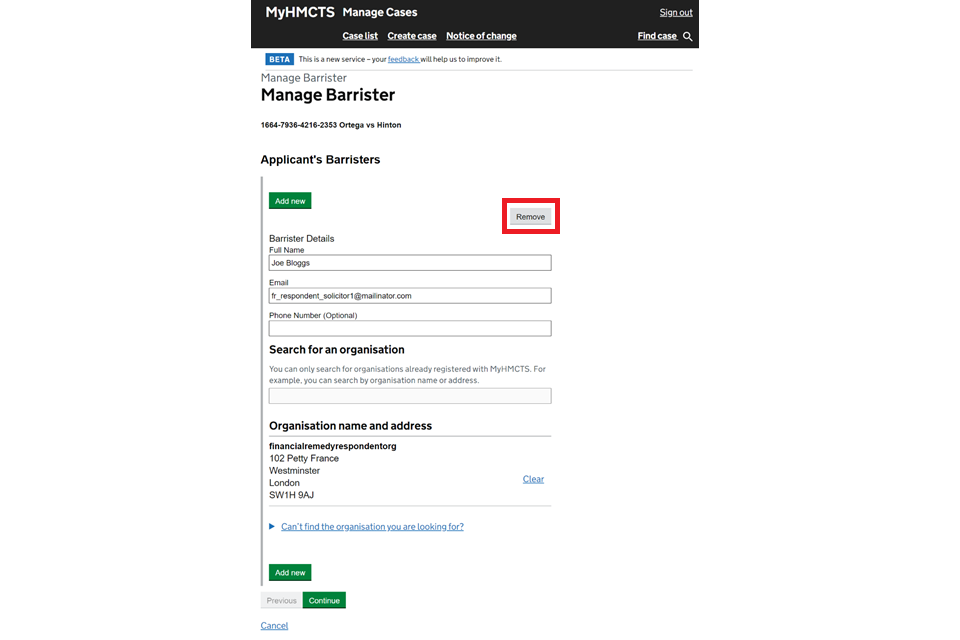
1. To remove a barrister select ‘Manage Barrister’ from the next step dropdown menu. Then select ‘Go’.

2. Select ‘Remove’ for the barrister that you need to remove from the case.
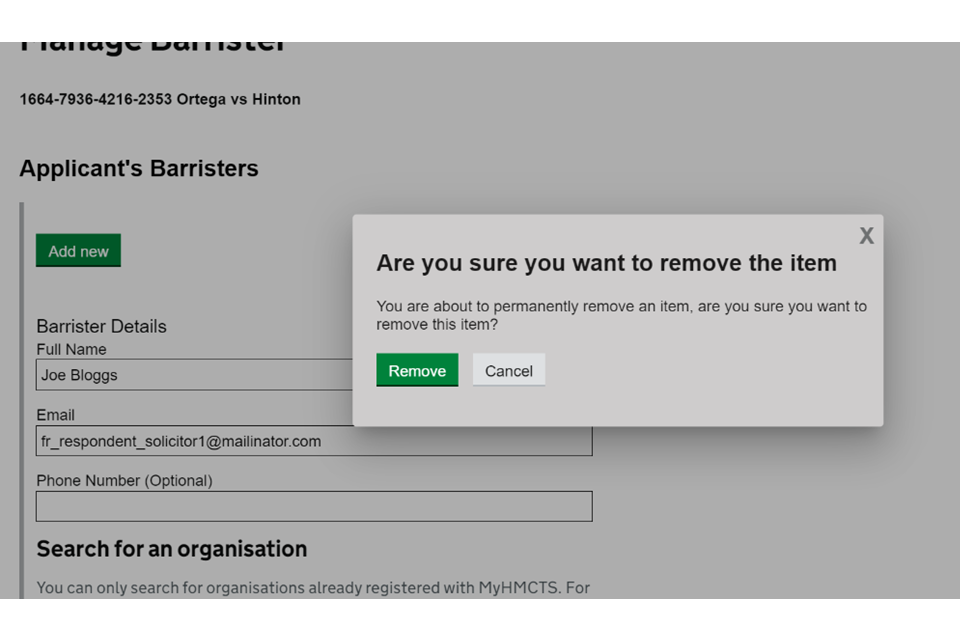
3. Select ‘Remove’ again on the confirmation box. Then select ‘Submit’.
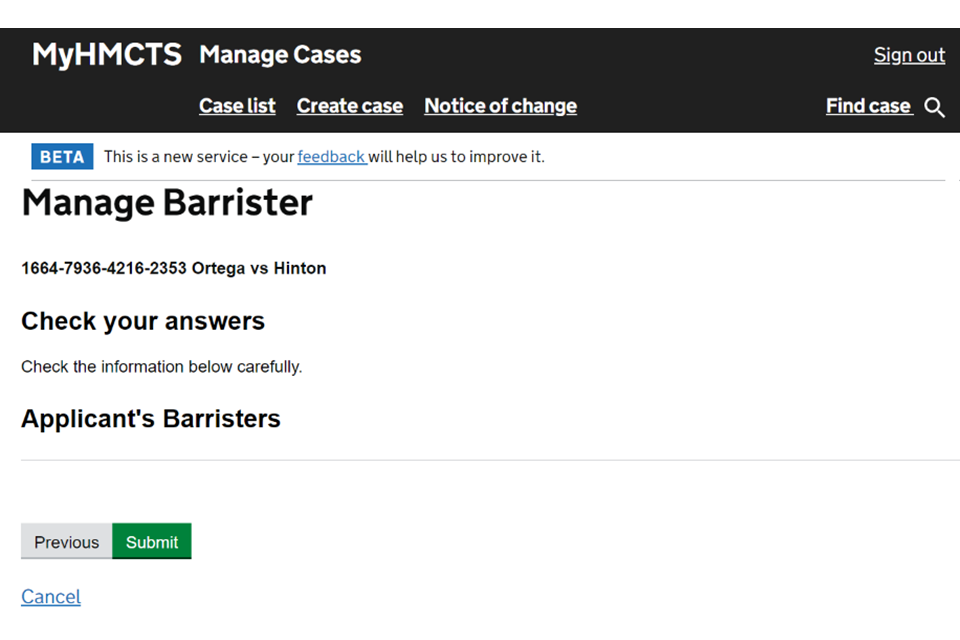
4. The barrister’s details will no longer appear on the ‘Check your answers’ page. Select ‘Submit’.
The barrister will receive an email to say they have been removed from the case. The case will no longer appear in their case list.
12. Update your contact details
You can update your contact details, such as postal address, email address or solicitors name, in MyHMCTS. You must not contact the court to update your contact details.
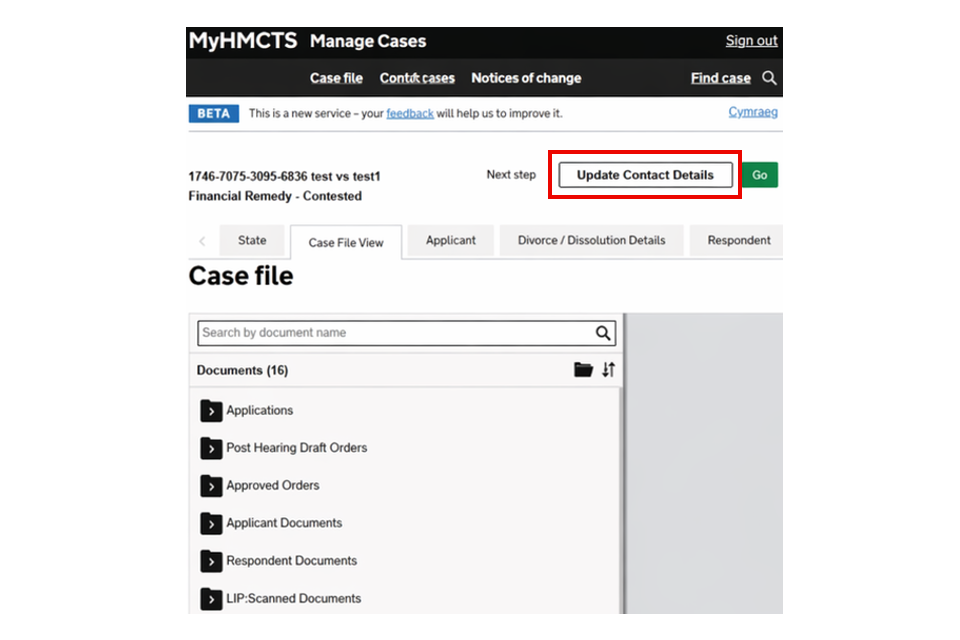
1. Select ‘Update Contact Details’ from the next step dropdown.
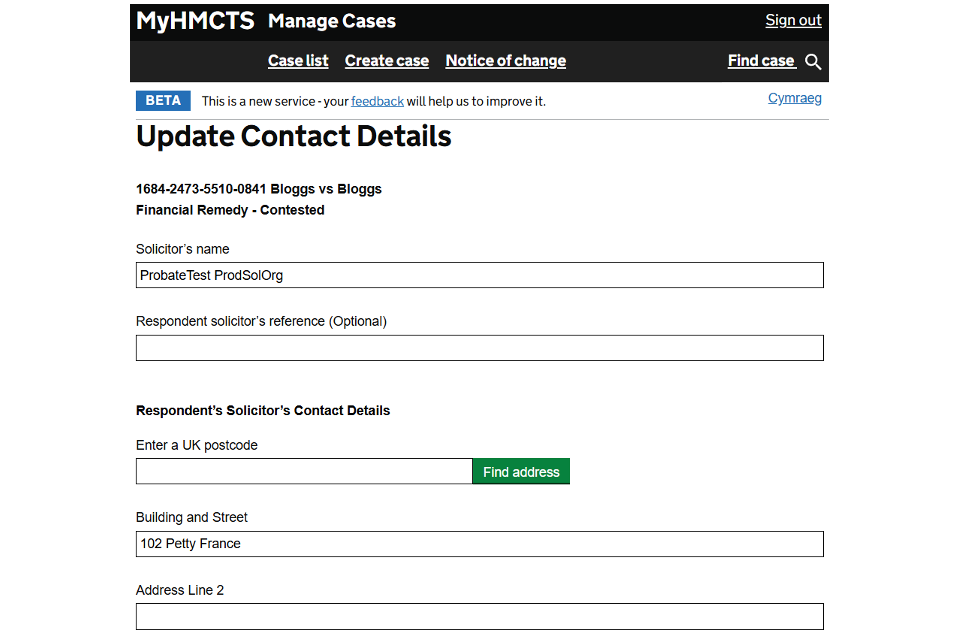
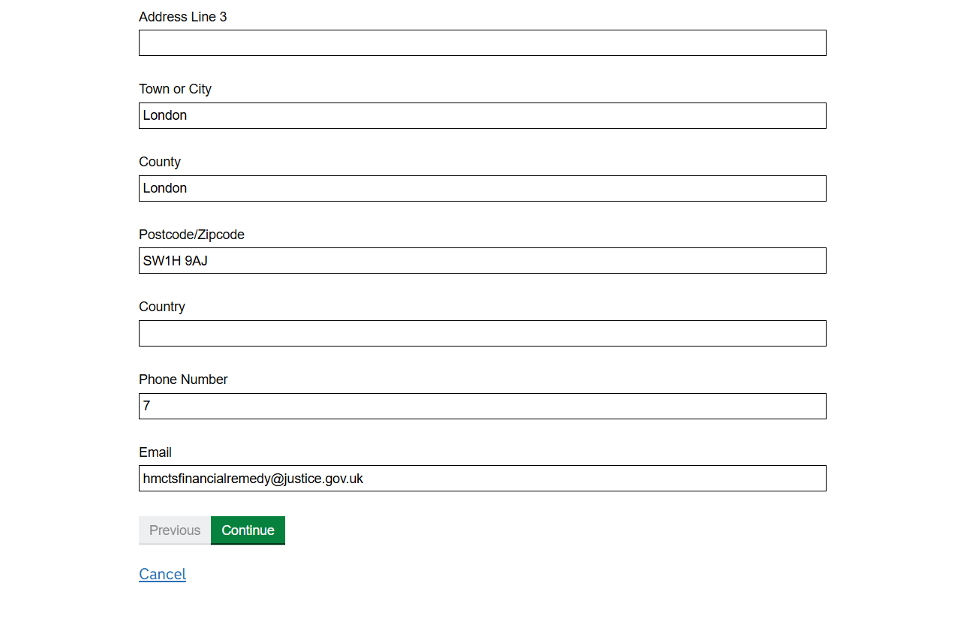
2. Update the details you need to.
3. Select ‘Continue’.
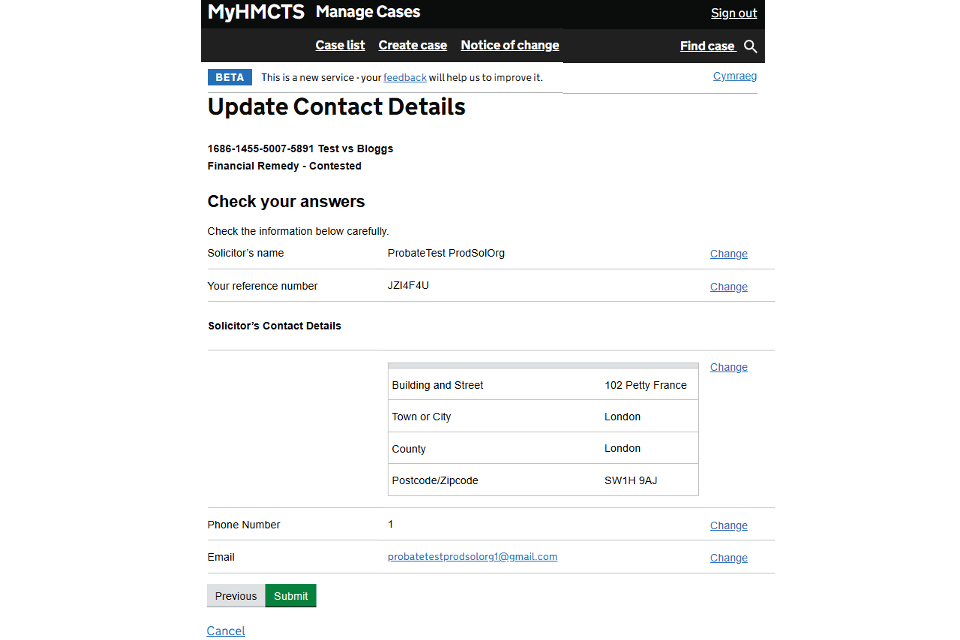
4. Check your answers. If you need to change anything, select ‘Change’ next to the appropriate answer. When everything is correct, select ‘Submit’.
13. Get help with MyHMCTS
Managing cases and case access in MyHMCTS
If you need help with your case, contact the financial remedy centre (FRC) managing your application. Find the contact information at HMCTS Financial Remedy Centres.
If you see an error message in MyHMCTS that you cannot resolve, or if you have feedback on how we can improve, contact the HMCTS Financial Remedy Service Team at HMCTSFinancialRemedy@justice.gov.uk.
Find guidance for case administration tasks in MyHMCTS
Accessing your MyHMCTS account
If you are having trouble accessing MyHMCTS, make sure you are using the correct link. To manage a case, you must use .
You should also make sure you:
- check your internet browser is up to date – we recommend you use Google Chrome or Microsoft Edge (you cannot use Internet Explorer or Apple Safari)
- clear your cookies and your cache
- check your firewall and security settings
We recommend that you bookmark or favourite MyHMCTS in your internet browser. You should only create the bookmark or favourite once you have signed in and are on the homepage. Do not create it from the sign in or verification pages, or while you have a case or organisation open.
If you are still having trouble accessing MyHMCTS, try using a different device to sign in.
If you have an IT support team, they will be able to help with any device, browser and security issues.
If you have an issue with your MyHMCTS account, you should contact an account administrator in your organisation.
If you need additional support with your MyHMCTS account, email MyHMCTSsupport@justice.gov.uk. We aim to respond within 5 working days.